Connecting To Data Sources in Power BI

Mohamad's interest is in Programming (Mobile, Web, Database and Machine Learning). He is studying at the Center For Artificial Intelligence Technology (CAIT), Universiti Kebangsaan Malaysia (UKM).
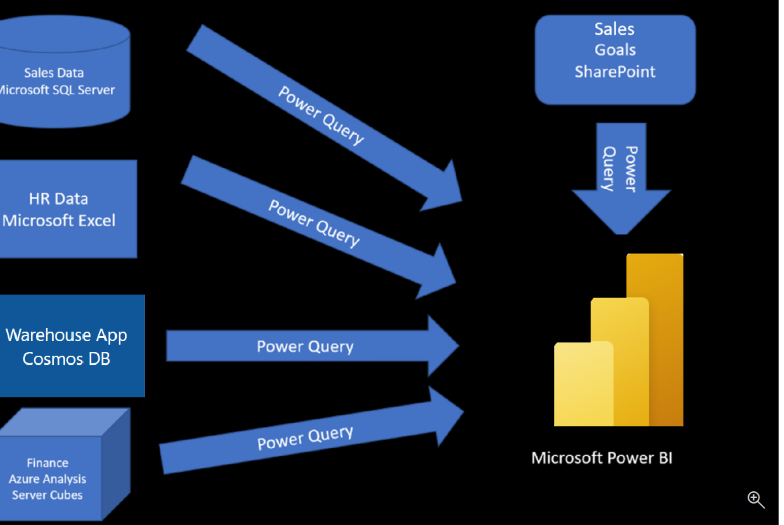
Connecting to and retrieving data is the essential first step in unlocking insights with Microsoft Power BI. The platform provides a variety of tools to connect, clean, and prepare data for analysis, whether it resides in Excel files, SQL databases, NoSQL systems, or cloud applications.
Overview
This guide will walk you through:
Importing data into Power BI
Selecting the appropriate storage mode
Optimizing performance
Troubleshooting common errors
Getting Data from Files
Most organizations store some data in files, and Power BI supports various formats, including Excel, CSV, and text files.
Types of File Connections
Local Files: Import data stored on your computer. Note that changes in the original file won't update automatically.
OneDrive for Business / SharePoint: Keep files synchronized with Power BI for always-up-to-date reports.
Personal OneDrive: Similar to OneDrive for Business but linked to your personal account.
How to Connect
In Power BI Desktop, select Home > Get Data (choose Excel, CSV, Text, etc.).
Preview data in the Navigator window.
Choose either Load (direct import) or Transform Data (clean data in Power Query).
Tip: Always use Power Query to clean and shape your data before loading it.
Connecting to Relational Databases
Relational databases like Microsoft SQL Server hold critical business data.
Steps to Connect
Go to Get Data > SQL Server.
Enter the server and database name.
Choose a connectivity mode:
Import: Loads data into Power BI for speed.
DirectQuery: Keeps data live in the database.
Authenticate with Windows, database credentials, or a Microsoft account.
Select tables in the Navigator window or write a custom SQL query.
Writing SQL queries helps load only the data you need, improving performance.
Creating Dynamic Reports with Parameters
Parameters allow reports to adapt based on user input, enabling you to:
Filter data by salesperson, region, or date range.
Let users adjust values directly in Power BI.
Reuse one report for different scenarios.
This approach enhances flexibility and reduces duplication.
Working with NoSQL Databases
Some applications store data in NoSQL systems like Azure Cosmos DB, often in JSON format.
Connecting to NoSQL
Use Power Query to expand nested JSON into rows and columns.
Connect via Get Data > Azure > Azure Cosmos DB, and authenticate with your endpoint and key.
This allows you to normalize unstructured data and combine it with relational sources for richer reporting.
Connecting to Online Services
Power BI integrates directly with many online services such as SharePoint, Dynamics 365, OneDrive, and Google Analytics.
Example: SharePoint List
Select Get Data > Online Services > SharePoint Online List.
Enter your SharePoint site URL (not the full file path).
Authenticate with your Microsoft account.
Select and load the desired list.
Choosing the Right Storage Mode
Selecting the right storage mode impacts performance and refresh options.
Storage Modes
Import (default): Loads a copy of the data into Power BI. Best for small to medium datasets, fast interactivity, and scheduled refreshes.
DirectQuery: Queries data live from the source. Ideal for very large datasets, real-time updates, and strict security requirements.
Dual (Composite): Combines Import and DirectQuery. Best when some data can be cached while other data must remain live.
If your data changes frequently, DirectQuery ensures live updates. If performance matters most, Import mode is usually better.
Using Azure Analysis Services
Azure Analysis Services provides enterprise-grade semantic models in the cloud.
Connect Live to keep DAX calculations in Azure and see updates instantly.
Import other data into Power BI or combine sources for richer analysis.
Supports DAX and MDX queries, especially useful for financial forecasts and enterprise-level reporting.
Optimizing Performance
If you experience slow queries or refreshes, Power BI includes tools to help:
Query Folding: Pushes transformations back to the source database for efficiency.
Query Diagnostics: Identifies bottlenecks step-by-step.
Best Practices
Process as much as possible in the source system.
Use SQL views instead of pulling raw tables.
Separate date and time columns for better compression.
Avoid “SELECT *” queries to prevent redundant data loads.
Troubleshooting Data Import Errors
Common errors and their fixes include:
Query Timeout: Simplify queries, reduce columns, or split data loads.
No Data Formatted as a Table (Excel): Convert ranges to tables in Excel before importing.
File Not Found: Update file paths in Data Source Settings.
Data Type Errors: Cast or convert fields at the source (e.g., CAST in SQL).
Conclusion
Getting data into Power BI is the foundation of effective reporting. With support for files, databases, NoSQL, online services, and Azure Analysis Services, Power BI offers flexibility for any data environment. By choosing the right storage mode, optimizing performance, and troubleshooting errors, you can ensure your reports are built on clean, reliable, and efficient data—ready to power decision-making