From Vibe Coding to Business Reality: Why You Should Try the Northwind Traders Template
Mohamad's interest is in Programming (Mobile, Web, Database and Machine Learning). He is studying at the Center For Artificial Intelligence Technology (CAIT), Universiti Kebangsaan Malaysia (UKM).
From Vibe Coding to Business Reality: Why You Should Try the Northwind Traders Template

In my earlier piece, “Why Vibe Coding Feels Right — Until It Doesn’t”, I explored why rapid, intuition-driven development can feel empowering at the start — and why it often collapses under real business pressure. Speed is seductive, but data ownership, structure, and longevity are what ultimately decide whether a system survives.
If that article raised questions like “So what should I use instead?” or “Where do I start without jumping into complex systems?”, this follow-up is your answer.
A practical, proven starting point already exists — and it ships free with Microsoft Access.
It’s called Northwind Traders.
What Is Northwind Traders?
Northwind Traders is a complete, working business database that models a small trading company. It is a realistic operational system that has been used for decades to teach how businesses actually manage data.
Inside Northwind, you’ll find:
Customers placing orders
Employees processing sales
Products supplied by vendors
Invoices, shipping details, and order histories
Clear relationships between every table
In other words, it represents how a real business thinks about data — not how a developer feels about it.
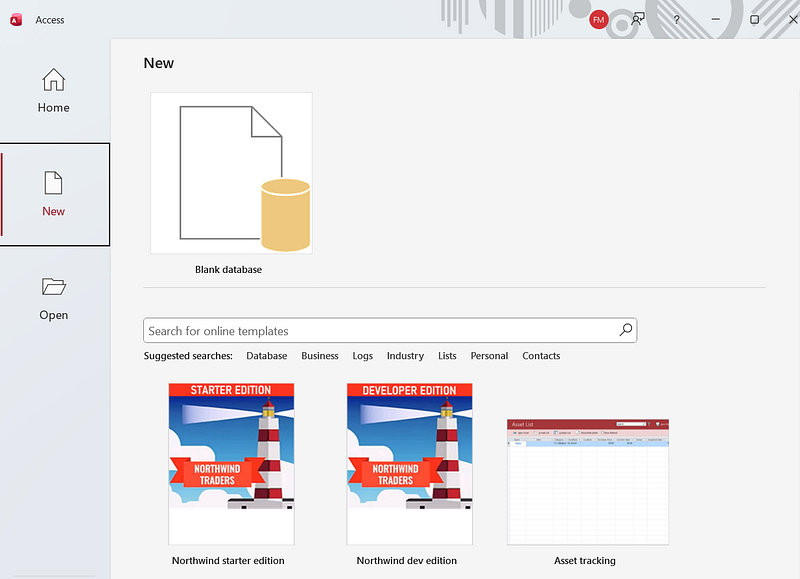
Below is a practical, step-by-step tutorial to start using the Northwind Traders (Starter Edition) template in Microsoft Access.
[1] Confirm what you have (Access version)
[.1] Open Microsoft Access.
[.2] Go to File → Account (or Office Account).
[.3] Note the version (e.g., Microsoft 365, Access 2019/2021).
Why this matters: the template name and where it appears can differ slightly by version.
[2] Create a new Northwind Starter database
[.1] In Access, click File → New.
[.2] In the search box, type: Northwind.
[.3] Select Northwind Traders (look for “Starter Edition” wording if shown).
[.4] On the right side, set:
File Name: e.g.,
Northwind_Starter.accdbLocation: choose a folder you can easily find (e.g., Documents).
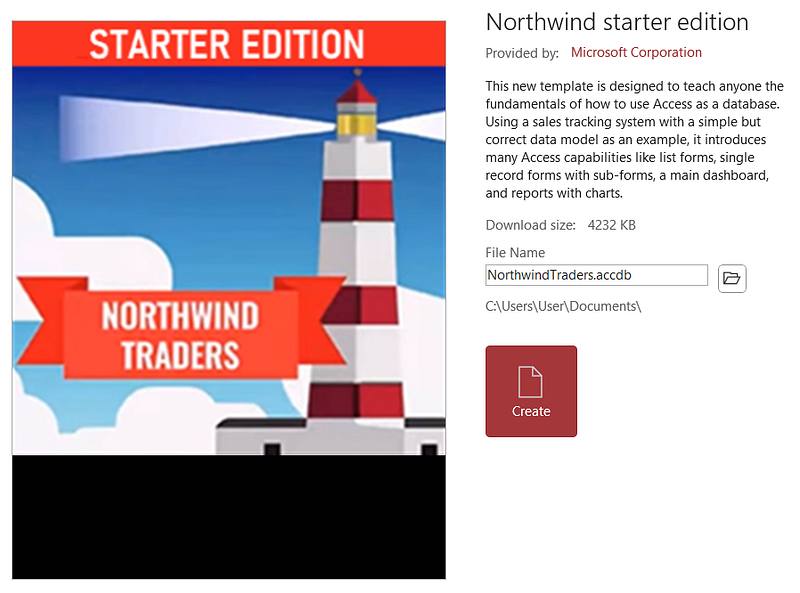
[.5] Click Create.
[.6] If Access prompts you with security warnings (yellow bar), click Enable Content.

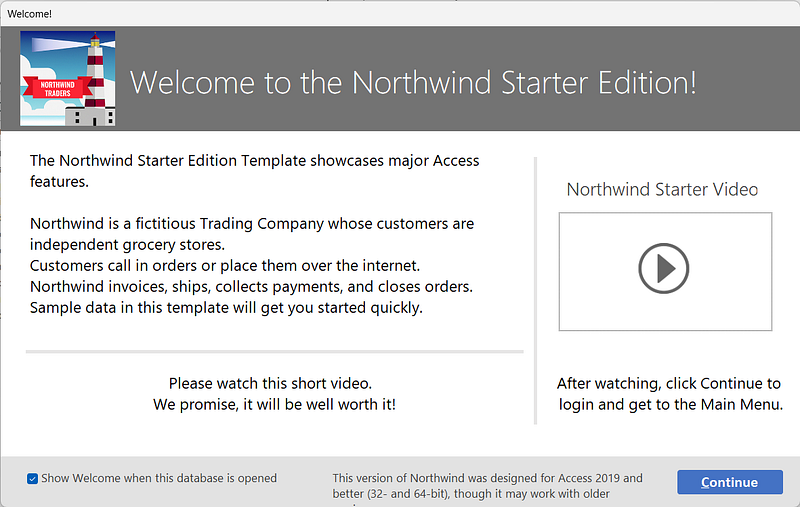
A welcome screen may pop up. Click Continue.
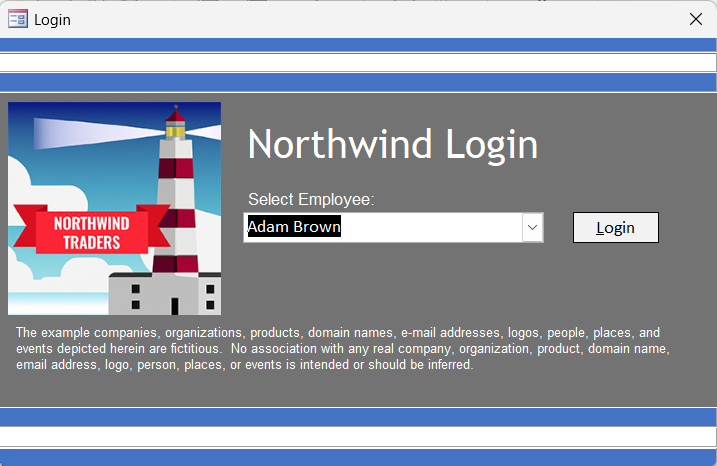
If a login screen pops up, enter an example of your credentials, e.g., First Name: Adam, Last Name: Brown, Job Title: Admin. Click Add Me.
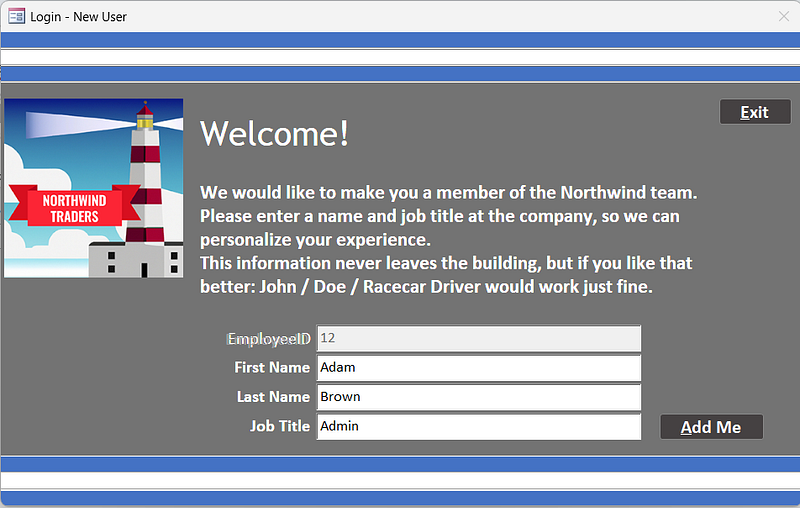
When you reopen the database in the future, that credential will be displayed.
Access generates a ready-to-use database with tables, forms, queries, and reports.
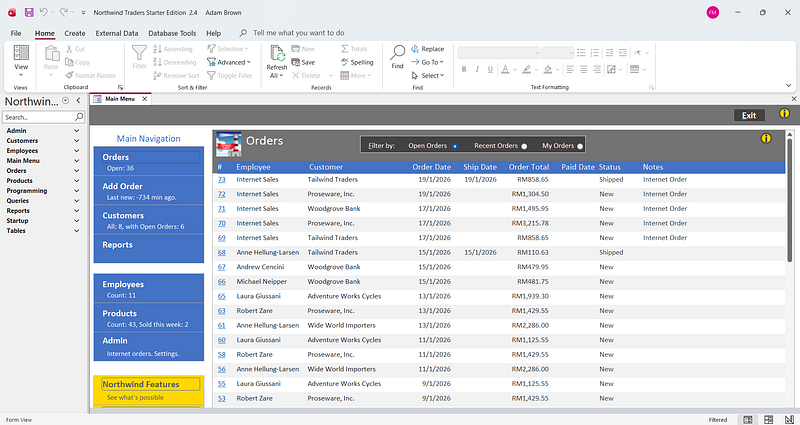
[2a] Note: If someone else has created the file and you are opening it, you may need to unblock the file’s security first.
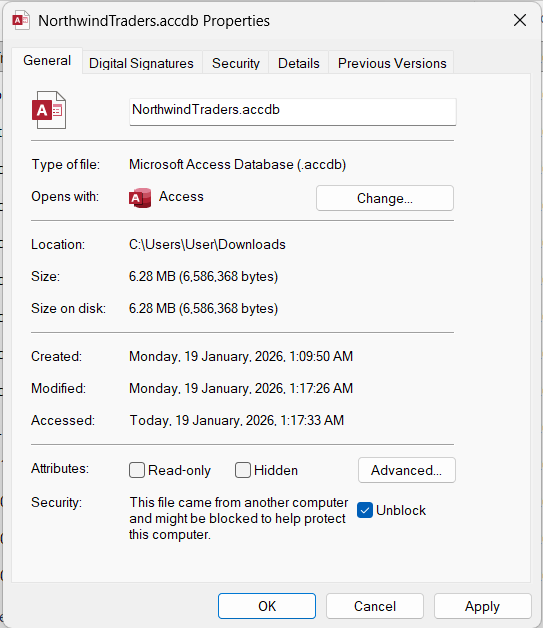
… and then click Enable Content.

… and then click Login.
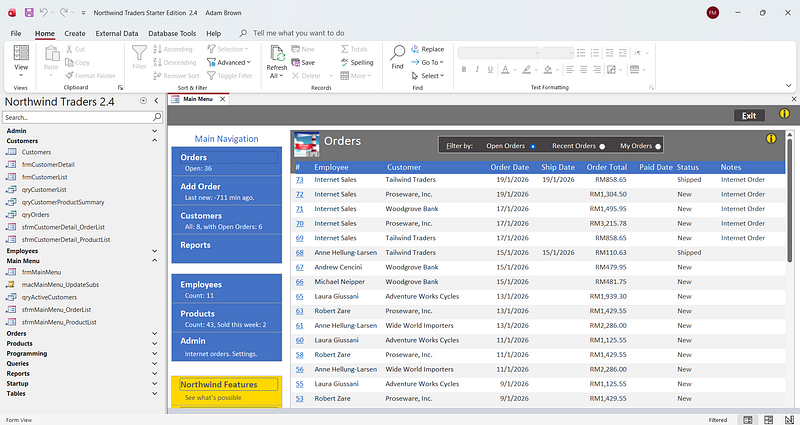
[3] Understand the Access screen (so you don’t get lost)
When Northwind opens, focus on 3 areas:
[.1] Navigation Pane (left)
Lists objects: Tables, Queries, Forms, Reports.
[.2] Main workspace (center)
Shows whatever object you open.
[.3] Ribbon (top)
Tabs change depending on what you’re doing (e.g., Form View vs Design View).
[4] Explore the “Home / Welcome” screen
Most Northwind templates open with a main “home” form.
[.1] On the home screen, click around the main modules (typical ones):
Customers
Products
Orders
Employees / Suppliers (varies by template)
…
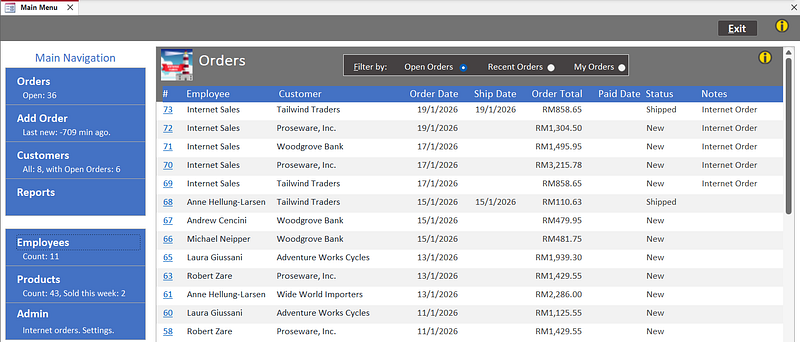
[.2] Don’t edit anything yet. Just observe:
What data is being captured
What actions are allowed
How it navigates between screens
Goal: understand the workflow first.
[5] View the core tables (the business “truth” lives here)
[.1] In the Navigation Pane, click Tables.
[.2] Open these tables (double-click):
Customers
Products
Orders
Order Details (sometimes named OrderDetails)
Suppliers (if present)
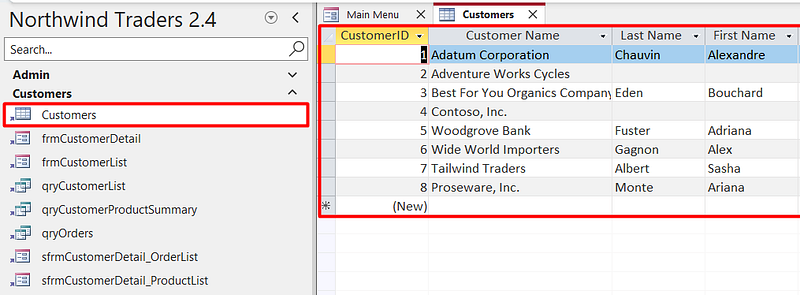
[.3] For each table, identify:
The ID field (primary key) (e.g., CustomerID, ProductID, OrderID)
The descriptive fields (Name, Address, etc.)
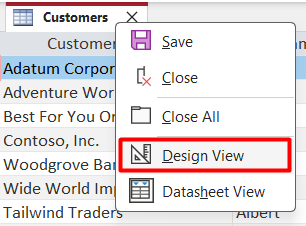
right-click the Customers tab to select Design View
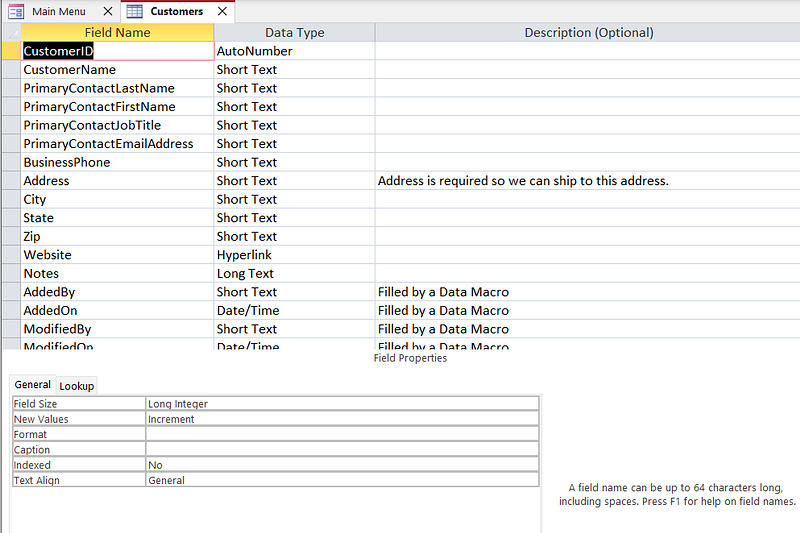
observe the field name, data type and description
Tip: If the navigation pane is grouped, use the category dropdown at the top of the pane to switch to “Object Type” if needed.
[6] Understand relationships (this is where Northwind teaches the most)
[.1] Go to Database Tools → Relationships.

[.2] You should see lines connecting tables.

[.3] Look for these common links:
Customers → Orders (one customer has many orders)
Orders → Order Details (one order has many line items)
Products → Order Details (one product can appear in many orders)
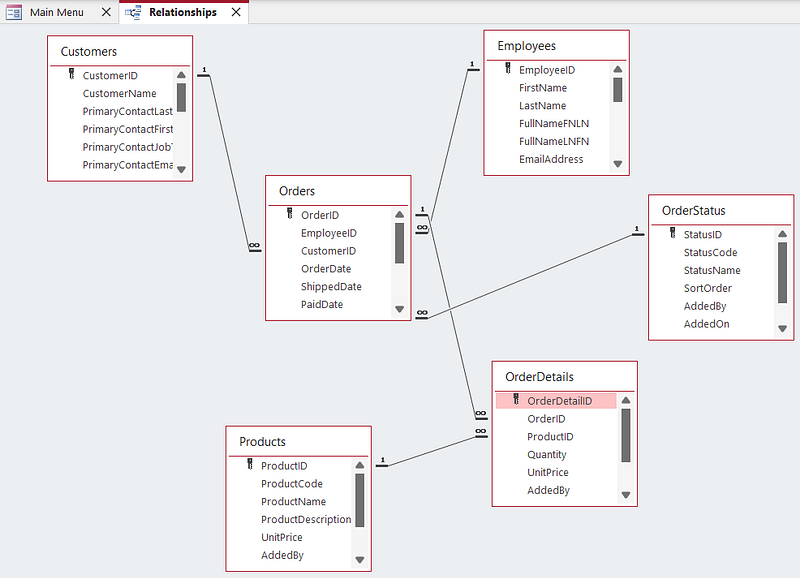
Drag the objects so that you can clearly see the links between them.
[.4] Click a relationship line and open it (double-click) to see:
which fields are linked
whether “Enforce Referential Integrity” is enabled (depends on template)
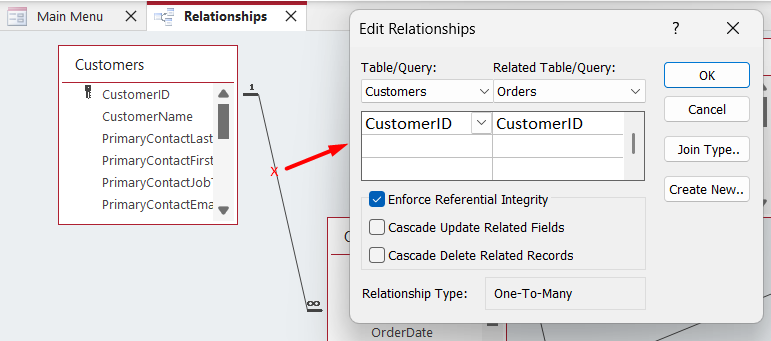
Goal: see how Access prevents broken/invalid records.
[7] Do your first real task: Add a new customer
[.1] Open the Customers form from the home screen (or from Forms list).
[.2] Click New (or “Add Customer”).
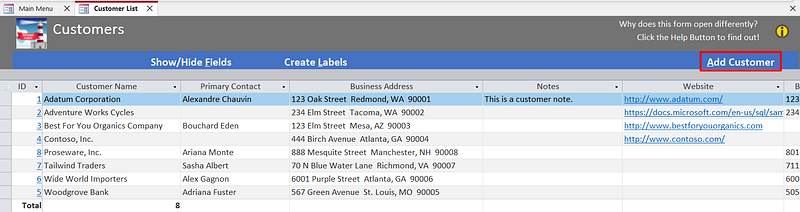
[.3] Fill in at minimum:
Customer/Company Name
Contact Name
Phone or Email
Address (optional, but good practice)
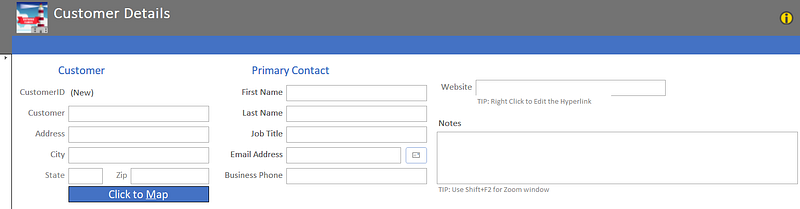
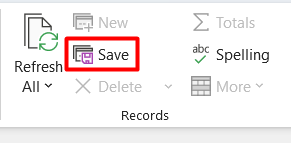
[.4] Click Save.
Then verify:
- Open the Customers table and confirm the record exists there too.
Lesson: Forms are the “safe” interface; tables are the storage.
[8] Add a product (inventory item)
[.1] Open Products form.
[.2] Add a product:
Product Name
Unit Price
Supplier (if required)
Category (if used)
[.3] Save.
[.4] Verify in the Products table.
[9] Create an order (the key workflow)
[.1] Open the Orders form.
[.2] Click New Order.
[.3] Select:
Customer
Order Date
[.4] Add order line items:
Choose Product
Enter Quantity
Confirm Unit Price pulls in correctly (template dependent)
[.5] Save the order.
[.6] Now verify the data model:
The Orders table has the order header (customer/date).
The Order Details table has the line items (product/quantity/price).
This is the most important Northwind concept: header + detail design.
[10] Run a few built-in queries (business questions)
[.1] In Navigation Pane, click Queries.
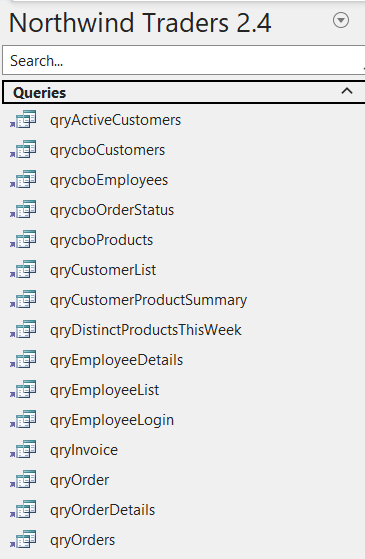
[.2] Open a few likely ones:
Sales by Customer
Orders by Date
Product List / Inventory list
[.3] Observe:
Queries read from tables
They compute summaries without changing the raw data
[11] Preview a report (management view)
[.1] In Navigation Pane, click Reports.
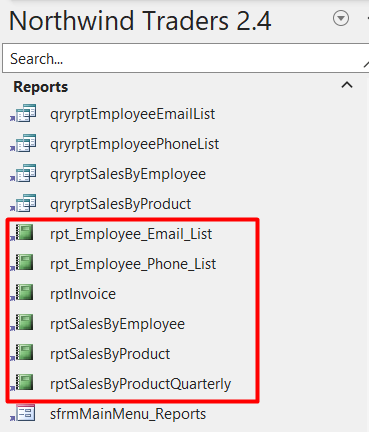
[.2] Open a sales or orders report.
[.3] Switch views:
Report View
Print Preview
Goal: Understand the difference between:
Data entry (Forms)
Data storage (Tables)
Analysis (Queries)
Presentation (Reports)
This concludes a brief introduction and initial exploration of the potential of Microsoft Access using the Northwind Traders template. I hope this gives readers some hands-on exposure and practical experience with the template, while also opening up new ideas for their own needs. Happy exploring.