Modify DAX filter context in semantic models

Mohamad's interest is in Programming (Mobile, Web, Database and Machine Learning). He is studying at the Center For Artificial Intelligence Technology (CAIT), Universiti Kebangsaan Malaysia (UKM).
Modifying the filter context in DAX lets you control how calculations evaluate data in Power BI semantic models. Gain deeper insights and tailor your analysis in your reports by choosing exactly what data is included in calculations.
Learning objectives
By the end of this module, you'll be able to:
Describe filter context.
Use the CALCULATE function to modify filter context.
Pass filters to the CALCULATE function.
Pass filter modifiers to the CALCULATE function.
Perform context transition.
[1] Introduction
Filter context describes the filters that are applied during the evaluation of a measure or measure expression.
To introduce this important concept, watch the following video to learn about filter context.
Filters can be applied directly to columns, like a filter on the Fiscal Year column in the Date table for the value FY2020. Additionally, filters can be applied indirectly, which happens when model relationships propagate filters to other tables. For example, the Sales table receives a filter through its relationship with the Date table, filtering the Sales table rows to return rows with an OrderDateKey column value in FY2020.
It's important to understand that calculated tables and calculated columns aren't evaluated within filter context. Calculated columns are evaluated in row context, though the formula can transition the row context to filter context, if it needs to summarize model data.
Note
Many units in this module present inline activities to follow along and create calculations. These activities are optional. If you want to complete the activities, you can download the Power BI Desktop file by using the links provided in the units.
At the end of this module, you have the opportunity to complete an exercise in a virtual machine to apply the lessons on how to create calculated tables, calculated columns, and simple measures using DAX.
[2] Understand filter context
At report design time, filters are applied in the Filters pane or to report visuals. The slicer visual is an example of a visual whose only purpose is to filter the report page (and other pages when it's configured as a synced slicer). Report visuals, which perform grouping, also apply filters. They're implied filters; the difference is that the filter result is visible in the visual. For example, a stacked column chart visual can filter by fiscal year FY2020, group by month, and summarize sales amount. The fiscal year filter isn't visible in the visual result, yet the grouping, which results in a column for each month, behaves as a filter.
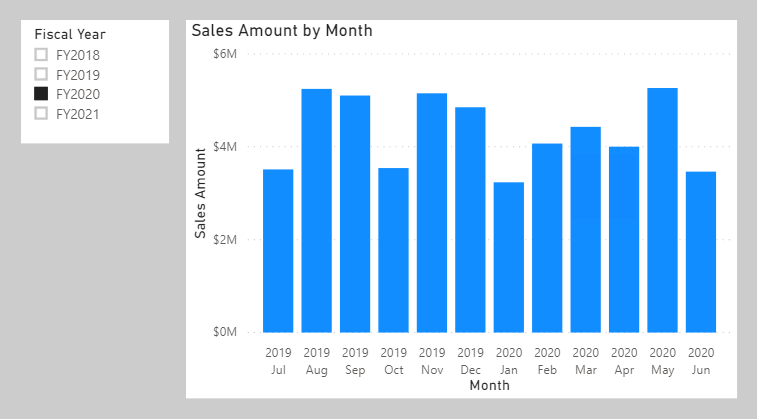
Not all filters are applied at report design time. Filters can be added when a report user interacts with the report. They can modify filter settings in the Filters pane, and they can cross-filter or cross-highlight visuals by selecting visual elements like columns, bars, or pie chart segments. These interactions apply other filters to report page visuals (unless interactions have been disabled).
It's important to understand how filter context works. It guides you in defining the correct formula for your calculations. As you write more complex formulas, you learn to identify when you need to add, modify, or remove filters to achieve the desired result.
Consider an example that requires your formula to modify the filter context. Your objective is to produce a report visual that shows each sales region together with its revenue and revenue as a percentage of total revenue.
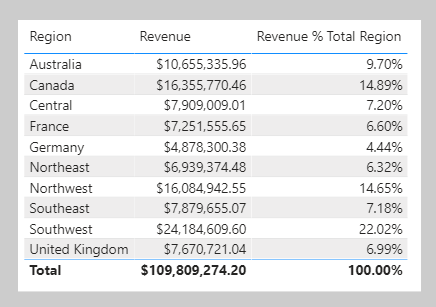
The Revenue % Total Region measure result is achieved by defining a measure expression that's the ratio of revenue divided by revenue for all regions. Therefore, for Australia, the ratio is 10,655,335.96 dollars divided by 109,809,274.20 dollars, which is 9.7 percent.
The numerator expression doesn't need to modify filter context; it should use the current filter context (a visual that groups by region applies a filter for that region). The denominator expression, however, needs to remove any region filters to achieve the result for all regions.
Tip
The key to writing complex measures is understanding these concepts:
How filter context works.
When and how to modify or remove filters to achieve a required result.
How to write a formula to accurately and efficiently modify filter context.
These concepts take practice and time to fully understand. Rarely will students understand the concepts from the beginning of training. Therefore, be patient and persevere with the theory and activities. We recommend that you repeat this module at a later time to help reinforce key lessons.
The next unit introduces the CALCULATE function. It's one of the most powerful DAX functions, allowing you to modify filter context when your formulas are evaluated.
[3] Modify filter context
You can use the CALCULATE function to modify filter context in your formulas. The syntax for the CALCULATE function is as follows:
DAXCopy
CALCULATE(<expression>, [[<filter1>], <filter2>]…)
The function requires passing in an expression that returns a scalar value and as many filters as you need. The expression can be a measure (which is a named expression) or any expression that can be evaluated in filter context.
Filters can be Boolean expressions or table expressions. It's also possible to pass in filter modification functions that provide more control when you're modifying filter context.
When you have multiple filters, they're evaluated by using the AND logical operator, which means that all conditions must be TRUE at the same time.
Note
The CALCULATETABLE function performs exactly the same functionality as the CALCULATE function, except that it modifies the filter context that's applied to an expression that returns a table object. In this module, the explanations and examples use the CALCULATE function, but keep in mind that these scenarios could also apply to the CALCULATETABLE function.
Apply Boolean expression filters
A Boolean expression filter is an expression that evaluates to TRUE or FALSE. Boolean filters must abide by the following rules:
They can reference only a single column.
They cannot reference measures.
They cannot use functions that scan or return a table that includes aggregation functions like
SUM.
To perform the tasks in this example, download and open the Adventure Works DW 2020 M06.pbix file. Then add the following measure to the Sales table that filters the Revenue measure by using a Boolean expression filter for red products.
DAXCopy
Revenue Red =
CALCULATE(
    [Revenue],
    'Product'[Color] = "Red"
)
Add the Revenue Red measure to the table visual that is found on Page 1 of the report.
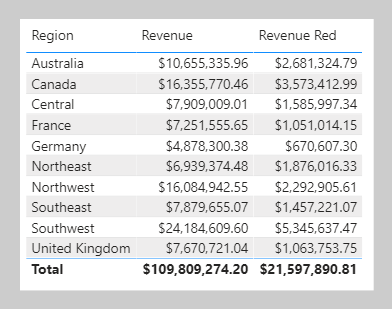
In this next example, the following measure filters the Revenue measure by multiple colors. Notice the use of the IN operator followed by a list of color values.
DAXCopy
Revenue Red or Blue =
CALCULATE(
    [Revenue],
    'Product'[Color] IN {"Red", "Blue"}
)
The following measure filters the Revenue measure by expensive products. Expensive products are those with a list price greater than 1,000 US dollars.
DAXCopy
Revenue Expensive Products =
CALCULATE(
    [Revenue],
    'Product'[List Price] > 1000
)
Apply table expression filters
A table expression filter applies a table object as a filter. It could be a reference to a model table; however, it's likely a DAX function that returns a table object.
Commonly, the FILTER function is used to apply complex filter conditions, including those that can't be defined by a Boolean filter expression. The FILTER function is classed as an iterator function, and so you would pass in a table, or table expression, and an expression to evaluate for each row of that table.
The FILTER function returns a table object with exactly the same structure as one that the table passed in. Its rows are a subset of those rows that were passed in, meaning the rows where the expression evaluated as TRUE.
The following example shows a table filter expression that uses the FILTER function:
DAXCopy
Revenue High Margin Products =
CALCULATE(
    [Revenue],
    FILTER(
        'Product',
        'Product'[List Price] > 'Product'[Standard Cost] * 2
    )
)
In this example, the FILTER function filters all rows of the Product table that are in filter context. Each row for a product where its list price exceeds double its standard cost is displayed as a row of the filtered table. Therefore, the Revenue measure is evaluated for all products that are returned by the FILTER function.
All filter expressions that are passed in to the CALCULATE function are table filter expressions. A Boolean filter expression is a shorthand notation to improve the writing and reading experience. Internally, Microsoft Power BI translates Boolean filter expressions to table filter expressions, which is how it translates your Revenue Red measure definition.
DAXCopy
Revenue Red =
CALCULATE(
    [Revenue],
    FILTER(
        'Product',
        'Product'[Color] = "Red"
    )
)
Filter behavior
Two possible standard outcomes occur when you add filter expressions to the CALCULATE function:
If the columns (or tables) aren't in filter context, then new filters are added to the filter context to evaluate the
CALCULATEexpression.If the columns (or tables) are already in filter context, the existing filters are overwritten by the new filters to evaluate the
CALCULATEexpression.
The following examples show how adding filter expressions to the CALCULATE function works.
Note
In each of the examples, no filters are applied to the table visual.
As in the previous activity, the Revenue Red measure was added to a table visual that groups by region and displays revenue.
Because no filter is applied on the Color column in the Product table, the evaluation of the measure adds a new filter to filter context. In the first row, the value of $2,681,324.79 is for red products that were sold in the Australian region.
Switching the first column of the table visual from Region to Color produces a different result because the Color column in the Product table is now in filter context.
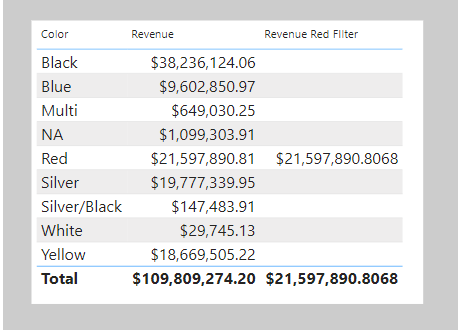
The Revenue Red measure formula evaluates the Revenue measure by adding a filter on the Color column (to red) in the Product table. In this visual that groups by color, the measure formula overwrites the filter context with a new filter.
This result might or might not be what you want. The next unit introduces the KEEPFILTERS function, which is a filter modification function that you can use to preserve filters rather than overwrite them.
[4] Use filter modifier functions
When using the CALCULATE function, you can pass in filter modification functions, which allow you to accomplish more than adding filters alone.
Remove filters
Use the REMOVEFILTERS function as a CALCULATE filter expression to remove filters from filter context. It can remove filters from one or more columns or from all columns of a single table.
Note
The REMOVEFILTERS function is relatively new. In previous versions of DAX, you removed filters by using the ALL function or variants including the ALLEXCEPT and the ALLNOBLANKROW functions. These functions behave as both filter modifiers and as functions that return table objects of distinct values. These functions are mentioned now because you'll possibly find documentation and formula examples that remove filters by using them.
In the following example, you add a new measure to the Sales table that evaluates the Revenue measure but does so by removing filters from the Sales Territory table. Format the measure as currency with two decimal places.
DAXCopy
Revenue Total Region = CALCULATE([Revenue], REMOVEFILTERS('Sales Territory'))
Now, add the Revenue Total Region measure to the matrix visual that is found on Page 2 of the report. The matrix visual will group by three columns from the Sales Territory table on the rows: Group, Country, and Region.
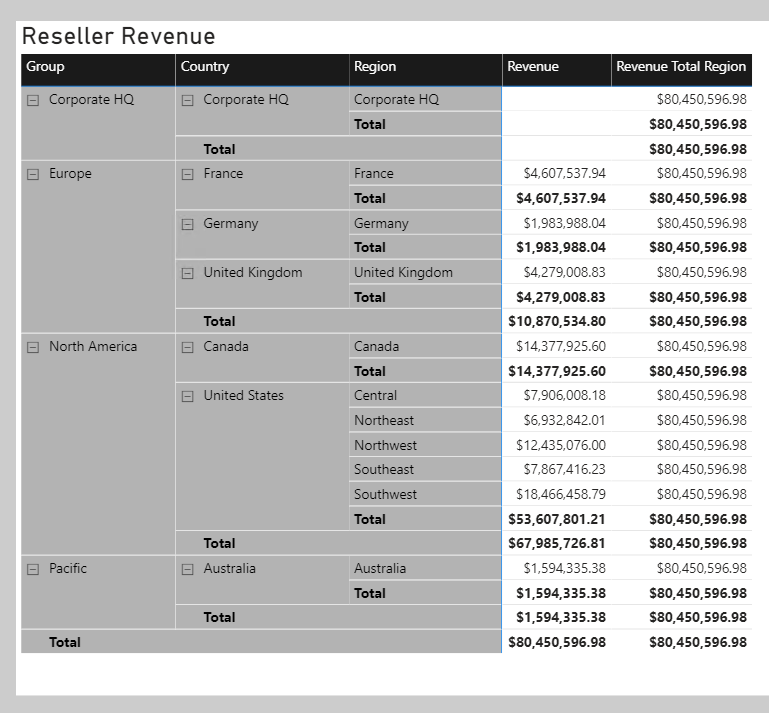
Notice that each Revenue Total Region measure value is the same. It's the value of total revenue.
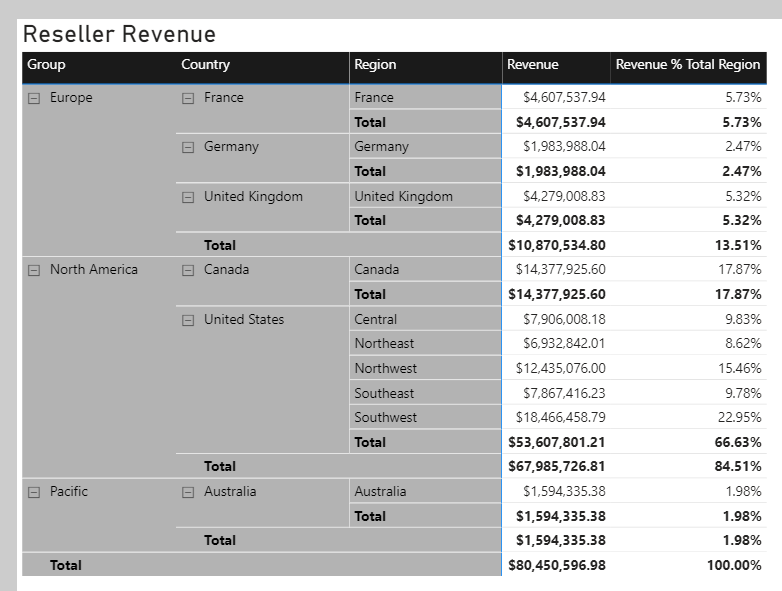
While this result on its own isn't useful, when it's used as a denominator in a ratio, it calculates a percent of grand total. Therefore, you'll now overwrite the Revenue Total Region measure definition with the following definition. This new definition changes the measure name and declares two variables. Be sure to format the measure as a percentage with two decimal places.
DAXCopy
Revenue % Total Region =
VAR CurrentRegionRevenue = [Revenue]
VAR TotalRegionRevenue =
    CALCULATE(
        [Revenue],
        REMOVEFILTERS('Sales Territory')
    )
RETURN
    DIVIDE(
        CurrentRegionRevenue,
        TotalRegionRevenue
    )
Verify that the matrix visual now displays the Revenue % Total Region values.
You'll now create another measure, but this time, you calculate the ratio of revenue for a region divided by its country's or region's revenue.
Before you complete this task, notice that the Revenue % Total Region value for the Southwest region is 22.95 percent. Investigate the filter context for this cell. Switch to data view and then, in the Data pane, select the Sales Territory table.
Apply the following column filters:
Group- North AmericaCountry- United StatesRegion- Southwest
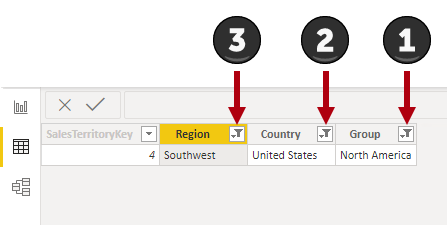
Notice that the filters reduce the table to only one row. Now, while thinking about your new objective to create a ratio of the region revenue over its country's revenue, clear the filter from the Region column.
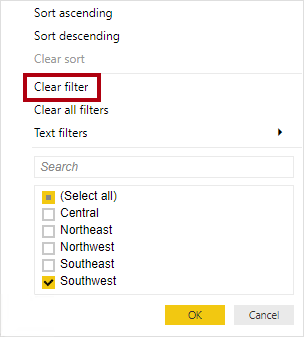
Notice that five rows now exist, each row belonging to the country United States. Accordingly, when you clear the Region column filters, while preserving filters on the Country and Group columns, you have a new filter context that's for the region's country.
In the following measure definition, notice how you can clear or remove a filter from a column. In DAX logic, it's a small and subtle change that's made to the Revenue % Total Region measure formula: The REMOVEFILTERS function now removes filters from the Region column instead of all columns of the Sales Territory table.
DAXCopy
Revenue % Total Country =
VAR CurrentRegionRevenue = [Revenue]
VAR TotalCountryRevenue =
    CALCULATE(
        [Revenue],
        REMOVEFILTERS('Sales Territory'[Region])
    )
RETURN
    DIVIDE(
        CurrentRegionRevenue,
        TotalCountryRevenue
    )
Add the Revenue % Total Country measure to the Sales table and then format it as a percentage with two decimal places. Add the new measure to the matrix visual.
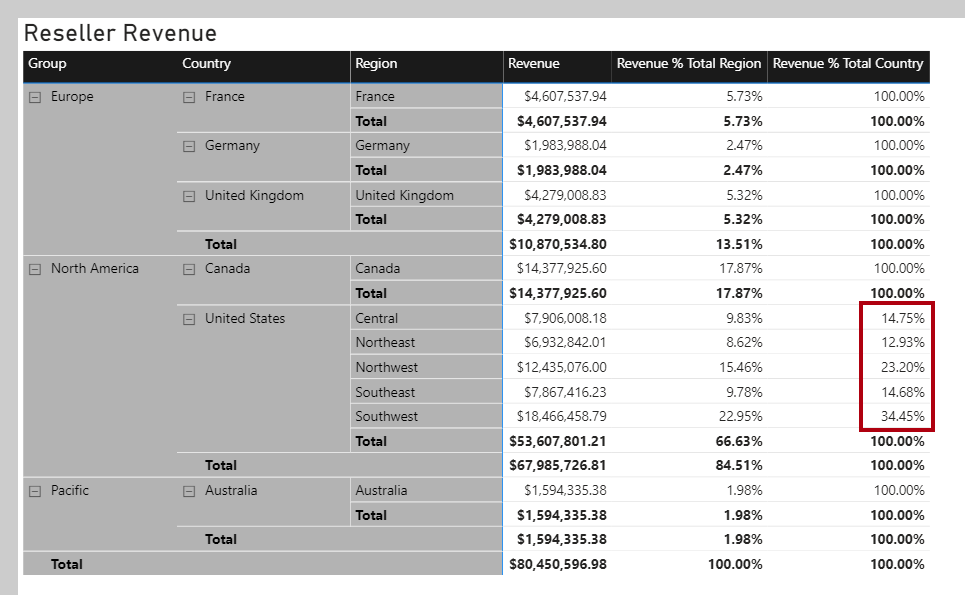
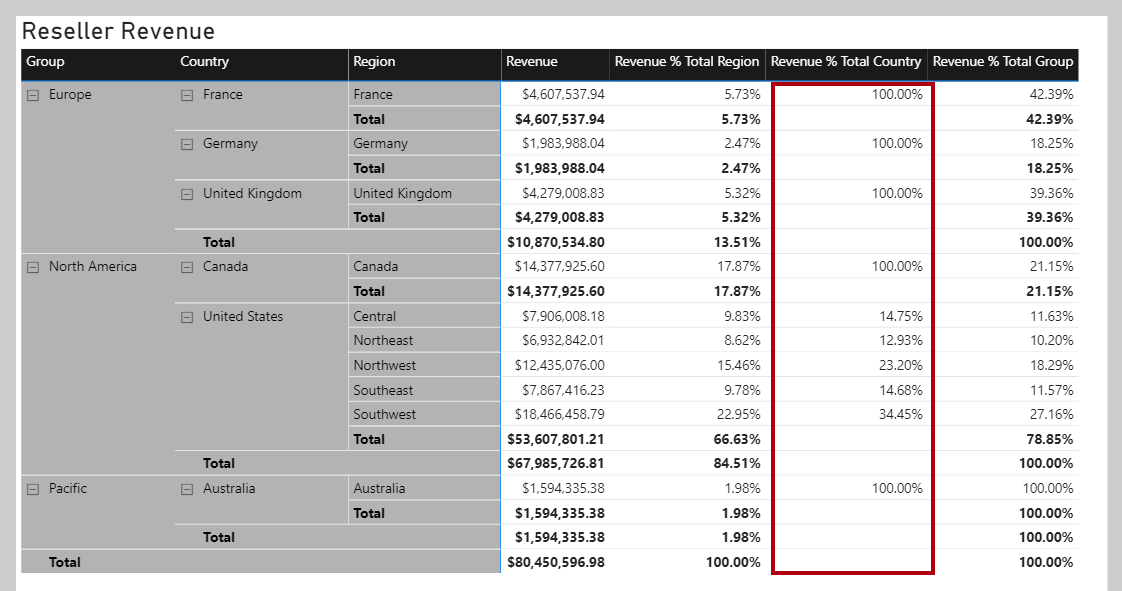
Notice that all values, except those values for United States regions, are 100 percent. The reason is because, at the Adventure Works company, the United States has regions, while all other countries/regions don't.
Note
Tabular models don't support ragged hierarchies, which are hierarchies with variable depths. Therefore, it's a common design approach to repeat parent (or other ancestor) values at lower levels of the hierarchy. For example, Australia doesn't have a region, so the country/region value is repeated as the region name. It's always better to store a meaningful value instead of BLANK.
The next example is last measure that you'll create. Add the Revenue % Total Group measure, and then format it as a percentage with two decimal places. Then, add the new measure to the matrix visual.
DAXCopy
Revenue % Total Group =
VAR CurrentRegionRevenue = [Revenue]
VAR TotalGroupRevenue =
    CALCULATE(
        [Revenue],
        REMOVEFILTERS(
            'Sales Territory'[Region],
            'Sales Territory'[Country]
        )
    )
RETURN
    DIVIDE(
        CurrentRegionRevenue,
        TotalGroupRevenue
    )
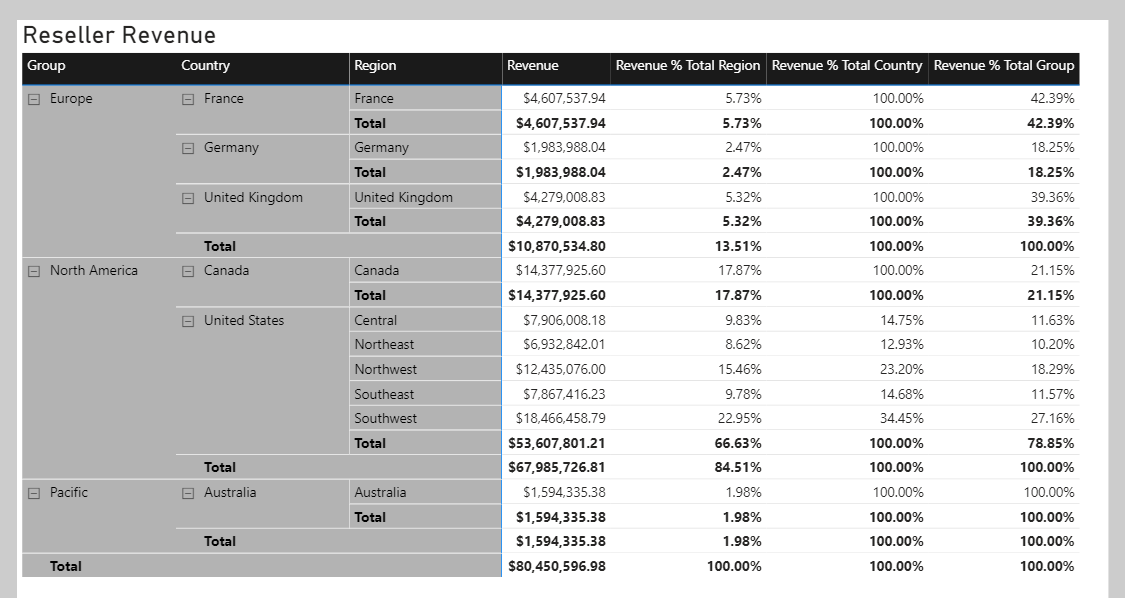
When you remove filters from the Region and Country columns in the Sales Territory table, the measure calculates the region revenue as a ratio of its group's revenue.
Preserve filters
You can use the KEEPFILTERS function as a filter expression in the CALCULATE function to preserve filters.
To observe how to accomplish this task, switch to Page 1 of the report. Then, modify the Revenue Red measure definition to use the KEEPFILTERS function.
DAXCopy
Revenue Red =
CALCULATE(
    [Revenue],
    KEEPFILTERS('Product'[Color] = "Red")
)
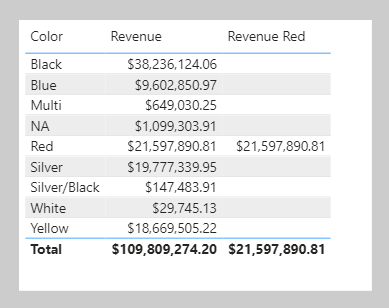
In the table visual, notice that only one Revenue Red measure value exists. The reason is because the Boolean filter expression preserves existing filters on the Color column in the Product table. The reason why colors other than red are BLANK is because the filter contexts and the filter expressions are combined for these two filters. The color black and color red are intersected, and because both can't be TRUE at the same time, the expression is filtered by no product rows. It's only possible that both red filters can be TRUE at the same time, which explains why the one Revenue Red measure value is shown.
Use inactive relationships
An inactive model relationship can only propagate filters when the USERELATIONSHIP function is passed as a filter expression to the CALCULATE function. When you use this function to engage an inactive relationship, the active relationship will automatically become inactive.
Review an example of a measure definition that uses an inactive relationship to calculate the Revenue measure by shipped dates:
DAXCopy
Revenue Shipped =
CALCULATE (
    [Revenue],
    USERELATIONSHIP('Date'[DateKey], Sales[ShipDateKey])
)
Modify relationship behavior
You can modify the model relationship behavior when an expression is evaluated by passing the CROSSFILTER function as a filter expression to the CALCULATE function. It's an advanced capability.
The CROSSFILTER function can modify filter directions (from both to single or from single to both) and even disable a relationship.
[5] Examine filter context
The VALUES function lets your formulas determine what values are in filter context.
The VALUES function syntax is as follows:
DAXCopy
VALUES(<TableNameOrColumnName>)
The function requires passing in a table reference or a column reference. When you pass in a table reference, it returns a table object with the same columns that contain rows for what's in filter context. When you pass in a column reference, it returns a single-column table of unique values that are in filter context.
The function always returns a table object and it's possible for a table to contain multiple rows. Therefore, to test whether a specific value is in filter context, your formula must first test that the VALUES function returns a single row. Two functions can help you accomplish this task: the HASONEVALUE and the SELECTEDVALUE functions.
The HASONEVALUE function returns TRUE when a given column reference has been filtered down to a single value.
The SELECTEDVALUE function simplifies the task of determining what a single value could be. When the function is passed a column reference, it returns a single value, or when more than one value is in filter context, it returns BLANK (or an alternate value that you pass to the function).
In the following example, you use the HASONEVALUE function. Add the following measure, which calculates sales commission, to the Sales table. At Adventure Works, the commission rate is 10 percent of revenue for all countries/regions except the United States. In the United States, salespeople earn 15 percent commission. Format the measure as currency with two decimal places, and then add it to the table that is found on Page 3 of the report.
DAXCopy
Sales Commission =
[Revenue]
    * IF(
        HASONEVALUE('Sales Territory'[Country]),
        IF(
            VALUES('Sales Territory'[Country]) = "United States",
            0.15,
            0.1
        )
    )
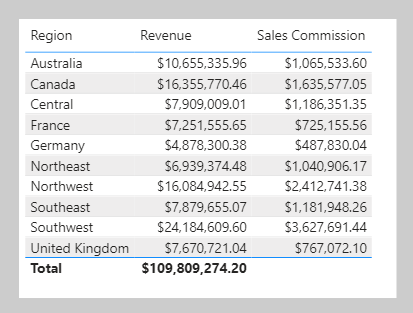
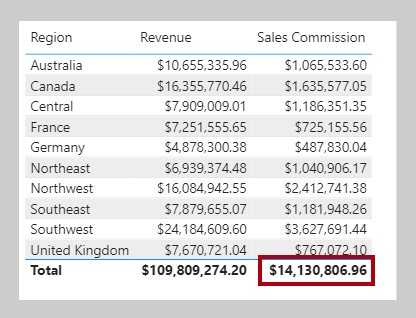
Notice that the total Sales Commission measure result is BLANK. The reason is because multiple values are in filter context for the Country column in the Sales Territory table. In this case, the HASONEVALUE function returns FALSE, which results in the Revenue measure being multiplied by BLANK (a value multiplied by BLANK is BLANK). To produce a total, you need to use an iterator function, which is explained later in this module.
Three other functions that you can use to test filter state are:
ISFILTERED- ReturnsTRUEwhen a passed-in column reference is directly filtered.ISCROSSFILTERED- ReturnsTRUEwhen a passed-in column reference is indirectly filtered. A column is cross-filtered when a filter that is applied to another column in the same table, or in a related table, affects the reference column by filtering it.ISINSCOPE- ReturnsTRUEwhen a passed-in column reference is the level in a hierarchy of levels.
Return to Page 2 of the report, and then modify the Revenue % Total Country measure definition to test that the Region column in the Sales Territory table is in scope. If it's not in scope, the measure result should be BLANK.
DAXCopy
Revenue % Total Country =
VAR CurrentRegionRevenue = [Revenue]
VAR TotalCountryRevenue =
    CALCULATE(
        [Revenue],
        REMOVEFILTERS('Sales Territory'[Region])
    )
RETURN
    IF(
        ISINSCOPE('Sales Territory'[Region]),
        DIVIDE(
            CurrentRegionRevenue,
            TotalCountryRevenue
        )
    )
[6] Perform context transition
What happens when a measure or measure expression is evaluated within row context? This scenario can happen in a calculated column formula or when an expression in an iterator function is evaluated.
In the following example, you add a calculated column to the Customer table to classify customers into a loyalty class. The scenario is simple: When the revenue that is produced by the customer is less than $2,500, the customer is classified as Low; otherwise they're classified as High.
DAXCopy
Customer Segment =
VAR CustomerRevenue = SUM(Sales[Sales Amount])
RETURN
    IF(CustomerRevenue < 2500, "Low", "High")
On Page 4 of the report, add the Customer Segment column as the legend of the pie chart.
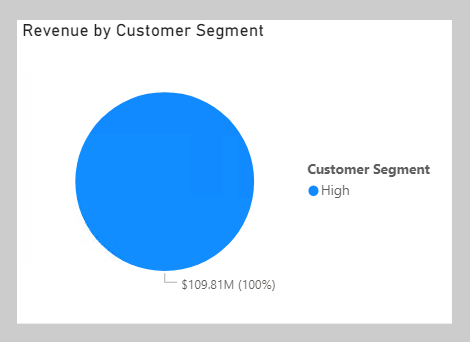
Notice that only one Customer Segment value exists. The reason is because the calculated column formula produces an incorrect result: Each customer is assigned the value of High because the expression SUM(Sales[Sales Amount]) isn't evaluated in a filter context. So, each customer is assessed on the sum of every Sales Amount column value in the Sales table.
To force the evaluation of the SUM(Sales[Sales Amount]) expression for each customer, a context transition must take place that applies the row context column values to filter context. You can accomplish this transition by using the CALCULATE function without passing in filter expressions.
Modify the calculated column definition so that it produces the correct result.
DAXCopy
Customer Segment =
VAR CustomerRevenue = CALCULATE(SUM(Sales[Sales Amount]))
RETURN
    IF(CustomerRevenue < 2500, "Low", "High")
In the pie chart visual add the new calculated column to the Legend well, verify that two pie segments now display.

In this case, the CALCULATE function applies row context values as filters, known as context transition. To be accurate, the process doesn't quite work that way when a unique column is on the table. When a unique column is on the table, you only need to apply a filter on that column to make the transition happen. In this case, Power BI applies a filter on the CustomerKey column for the value in row context.
If you reference measures in an expression that's evaluated in row context, context transition is automatic. Thus, you don't need to pass measure references to the CALCULATE function.
Modify the calculated column definition, which references the Revenue measure, and notice that it continues to produce the correct result.
DAXCopy
Customer Segment =
VAR CustomerRevenue = [Revenue]
RETURN
    IF(CustomerRevenue < 2500, "Low", "High")
Now, you can complete the Sales Commission measure formula. To produce a total, you need to use an iterator function to iterate over all regions in filter context. The iterator function expression must use the CALCULATE function to transition the row context to the filter context. Notice that it no longer needs to test whether a single Country column value in the Sales Territory table is in filter context because it's known to be filtering by a single country/region (because it's iterating over the regions in filter context and a region belongs to only one country/region).
Switch to Page 3 of the report, and then modify the Sales Commission measure definition to use the SUMX iterator function:
DAXCopy
Sales Commission =
SUMX(
    VALUES('Sales Territory'[Region]),
    CALCULATE(
        [Revenue]
        * IF(
            VALUES('Sales Territory'[Country]) = "United States",
            0.15,
            0.1
        )
    )
)
The table visual now displays a sales commission total for all regions.
[7] Exercise - Modify DAX filter context
This unit includes a lab to complete.
Use the free resources provided in the lab to complete the exercises in this unit. You will not be charged for the lab environment; however, you may need to bring your own subscription depending on the lab.
Microsoft provides this lab experience and related content for educational purposes. All presented information is owned by Microsoft and intended solely for learning about the covered products and services in this Microsoft Learn module.
In this exercise, you learn how to:
- Use the
CALCULATEfunction to manipulate filter context.
This lab takes approximately 30 minutes to complete.
Note
A virtual machine containing the client tools you need is provided, along with the exercise instructions. Use the "Launch lab" button to launch the virtual machine.
A limited number of concurrent sessions are available. If the hosted environment is unavailable, please try again later.
Alternatively, you can open the instructions in a separate window.
Access your environment
Before you start this lab (unless you are continuing from a previous lab), select Launch lab above.
You are automatically logged in to your lab environment as data-ai\student.
You can now begin your work on this lab.
Tip
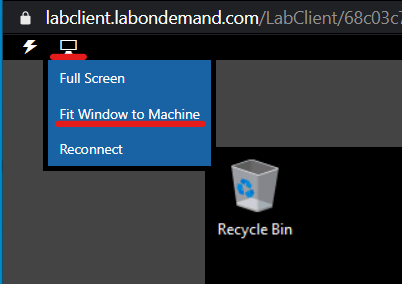
To dock the lab environment so that it fills the window, select the PC icon at the top and then select Fit Window to Machine.
[9] Check your knowledge
Answer the following questions to see what you've learned.
[1] Which type of model object is evaluated within a filter context?
a. Calculated column
b. Calculated table
c. Measure
d. Security role rule
[2] Which one of the following DAX functions allows you to use an inactive relationship when evaluating a measure expression?
a. USERELATIONSHIP
b. CROSSFILTER
c. REMOVEFILTERS
d. ISCROSSFILTERED
[3] Which one of the following statements about the CALCULATE function is true?
a. You must pass in at least one filter argument.
b. It modifies filter context to evaluate a given expression.
c. It modifies row context to evaluate a given expression.
d. It can't be used by a calculated column formula.
[9] Summary
In this module, you learned about filter context. You also learned why and how to work with the CALCULATE function to modify filter context by passing in filters. These filters can add or overwrite the filter context, and they can modify filter context when you're passing in special functions like REMOVEFILTERS or KEEPFILTERS.
Additionally, you learned that the CALCULATE function can transition row context to filter context, which can be required when you're using measure expressions in calculated columns or iterator functions.
Source:
https://learn.microsoft.com/en-us/training/modules/dax-power-bi-modify-filter/