Optimize a model for performance in Power BI

Mohamad's interest is in Programming (Mobile, Web, Database and Machine Learning). He is studying at the Center For Artificial Intelligence Technology (CAIT), Universiti Kebangsaan Malaysia (UKM).
Performance optimization, also known as performance tuning, involves making changes to the current state of the semantic model so that it runs more efficiently. Essentially, when your semantic model is optimized, it performs better.
Learning objectives
By the end of this module, you learn how to:
Review the performance of measures, relationships, and visuals.
Use variables to improve performance and troubleshooting.
Improve performance by reducing cardinality levels.
Optimize DirectQuery models with table level storage.
Create and manage aggregations.
[1] Introduction to performance optimization
Performance optimization, also known as performance tuning, involves making changes to the current state of the semantic model so that it runs more efficiently. Essentially, when your semantic model is optimized, it performs better.
In this module, you'll be introduced to the steps, processes, and concepts that are necessary to optimize a semantic model for enterprise-level performance. However, keep in mind that, while the basic performance and best practices guidance in Power BI will take you a long way, to optimize a semantic model for query performance, you'll likely have to partner with a data engineer to drive semantic model optimization in the source data systems.
By the end of this module, you'll be able to:
Review the performance of measures, relationships, and visuals.
Use variables to improve performance and troubleshooting.
Improve performance by reducing column and relationship cardinality.
Optimize DirectQuery models with table-level storage.
Create and manage aggregations.
[2] Describe semantic model optimization techniques
As a data analyst, you will spend approximately 90 percent of your time working with your data, and nine times out of ten, poor performance is a direct result of a poorly designed semantic model, inefficient Data Analysis Expressions (DAX) calculations, or a mix of the two. The process of designing a semantic model for performance can be tedious, and it's often underestimated.
However, if you address performance issues during development, you'll have a robust semantic model that will deliver better reporting performance and an overall more positive user experience. Ultimately, you'll also be able to maintain optimized performance. As your organization grows, the size of its data grows, and its semantic models becomes more complex. By optimizing your semantic model early, you can mitigate the negative impact that this growth might have on the performance of your semantic model.
A smaller sized semantic model uses less resources (memory) and achieves faster data refresh, calculations, and rendering of visuals in reports. Therefore, the performance optimization process involves minimizing the size of the semantic model and making the most efficient use of the data in the model. Your design decisions should:
Ensure that the correct data types are used.
Remove unnecessary columns and rows.
Avoid repeated values.
Surface numeric columns as measures.
Reduce column cardinality.
Analyze model metadata.
Summarize data where possible.

For example, consider that you work as a Power BI developer for Tailwind Traders. You have been tasked to review a semantic model that was created a few years ago by another developer, a person who has since left the organization.
The semantic model produces a report that has received negative feedback from users. The users are happy with the results that they see in the report, but they aren't satisfied with the report performance. Loading the pages in the report takes too long, and tables aren't updating quickly enough when new filters are applied. In addition to this feedback, the IT team has highlighted that the file size of this particular semantic model is too large, and that it's putting a strain on the capacity resources.
You need to review the semantic model in order to identify the root cause(s) of the performance issues and make changes to optimize performance.
[3] Review performance of measures, relationships, and visuals
If your semantic model has multiple tables, complex relationships, intricate calculations, multiple visuals, or redundant data, a potential exists for poor report performance. The poor performance of a report leads to a negative user experience.
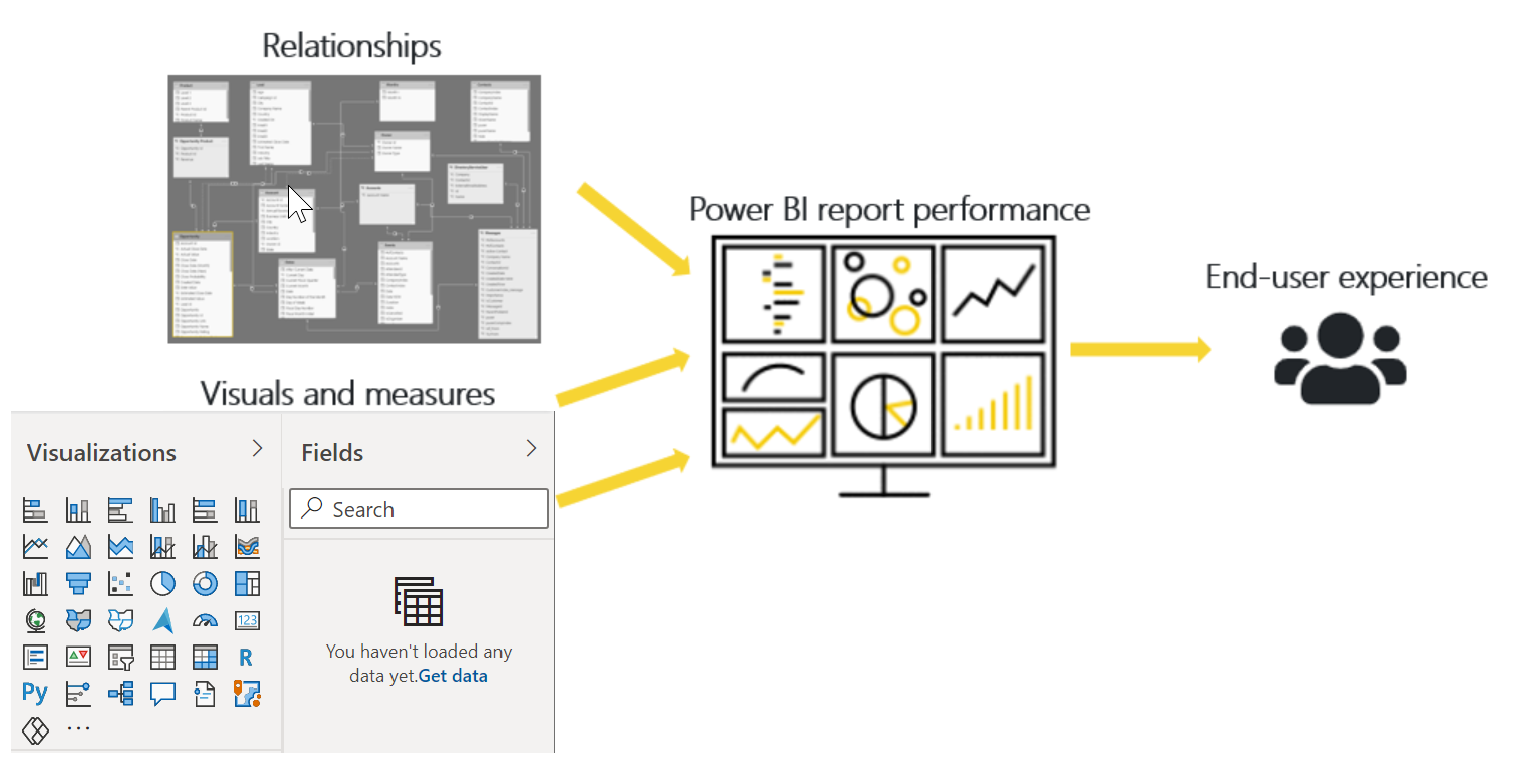
To optimize performance, you must first identify where the source of the problem; in other words, find out which elements of your report and semantic model are causing the performance issues. Afterward, you can take action to resolve those issues and, therefore, improve performance.
Identify report performance bottlenecks
To achieve optimal performance in your reports, you need to create an efficient semantic model that supports fast-running queries and measures. When you have a good foundation, you can improve the model further by analyzing the query plans and dependencies and then making changes to further optimize performance.
You should review the measures and queries in your semantic model to ensure that you are using the most efficient way to get the results that you want. Your starting point should be to identify bottlenecks that exist in the code. When you identify the slowest query in the semantic model, you can focus on the biggest bottleneck first and then establish a priority list to work through the other issues.
Analyze performance
You can use Performance Analyzer, which is a tool in Power BI Desktop, to help find out how each of your report elements is performing when users interact with them. For example, you can determine how long it takes for a particular visual to refresh when it's initiated by a user interaction. The tool will help you identify any elements that contribute to your performance issues, which can be useful during troubleshooting.
Before you run Performance Analyzer, to ensure you get the most accurate results in your analysis (test), make sure that you start with a clear visual cache and a clear data engine cache.
Visual cache - When you load a visual, you can't clear this visual cache without closing Power BI Desktop and opening it again. To avoid any caching in play, you need to start your analysis with a clear visual cache.
To ensure that you have a clear visual cache, add a blank page to your Power BI Desktop file and then, with that page selected, save and then close the file. Reopen the Power BI Desktop file, which will open on the blank page.
Data engine cache - When a query is run, the results are cached, so the results of your analysis will be misleading. You need to clear the data cache before rerunning the visual.
To clear the data cache, you can either restart Power BI Desktop or connect DAX Studio to the semantic model and then invoke the Clear Cache function.
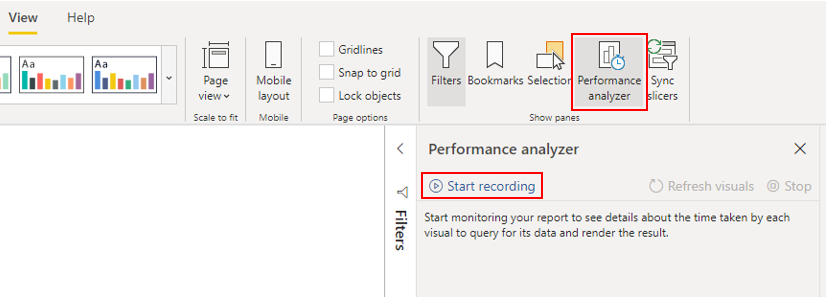
When you have cleared the caches and opened the Power BI Desktop file on the blank page, go to the View ribbon tab, and then select Performance Analyzer.
To begin the analysis process, select Start recording, select the page of the report that you want to analyze, and then interact with the elements of the report that you want to monitor. You will see the results of your interactions displayed in the Performance Analyzer pane as you work. When you are finished, select the Stop button.
For more detailed information, see Use Performance Analyzer to examine report element performance.
Review results
You can review the results of your performance test in the Performance Analyzer pane. To review the tasks in order of duration, longest to shortest, right-click the Sort icon next to the Duration (ms) column header, and then select Total time in Descending order.
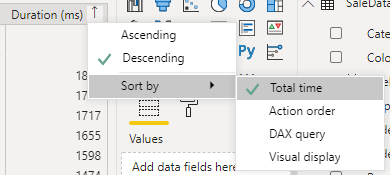
The log information for each visual shows how much time it took (duration) to complete the following categories of tasks:
DAX query - The time it took for the visual to send the query, along with the time it took Power BI to return the results.
Visual display - The time it took for the visual to render on the screen, including the time required to retrieve web images or geocoding.
Other - The time it took the visual to prepare queries, wait for other visuals to complete, or perform other background processing tasks. If this category displays a long duration, the only real way to reduce this duration is to optimize DAX queries for other visuals, or reduce the number of visuals in the report.
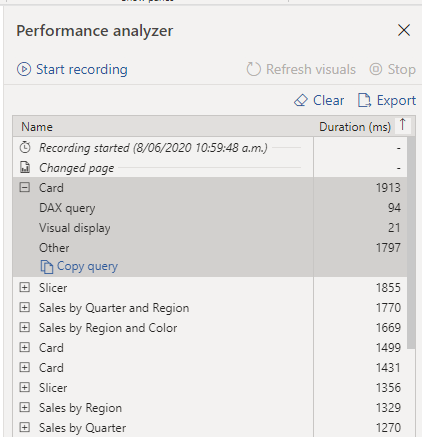
The results help you to understand the behavior of your semantic model and identify the elements that you need to optimize. You can compare the duration of each element in the report and identify the elements that have a long duration. You should focus on those elements and investigate why it takes them so long to load on the report page.
To analyze your queries in more detail, you can use DAX Studio, which is a free, open-source tool that's provided by another service.
Resolve issues and optimize performance
The results of your analysis will identify areas for improvement and opportunities for performance optimization. You might find that you need to carry out improvements to the visuals, DAX calculations, or other elements in your semantic model. The following information provides guidance on what to look for and the changes that you can make.
Visuals
If you identify visuals as the bottleneck leading to poor performance, you should find a way to improve performance with minimal impact to user experience.
Consider the number of visuals on the report page; fewer visuals means better performance. Ask yourself if a visual is really necessary and whether it adds value to the end user. If the answer is no, you should remove that visual. Rather than using multiple visuals on the page, consider other ways to provide additional details, such as drill-through pages or report page tooltips.
Examine the number of fields in each visual. The more visuals you have on the report, the higher chance for performance issues. In addition, the more visuals, the more the report can appear crowded and lose clarity. The upper limit for visuals is 100 fields (measures or columns), so a visual with more than 100 fields will be slow to load. Ask yourself whether you really need all of this data in a visual. You might find that you can reduce the number of fields that you currently use.
DAX query
When you examine the results in the Performance Analyzer pane, you can see how long it took the Power BI Desktop engine to evaluate each query (in milliseconds). A good starting point is any DAX query that's taking longer than 120 milliseconds. In this example, you identify one particular query that has a large duration time.
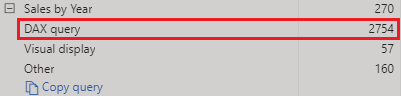
Performance Analyzer highlights potential issues, but it doesn't tell you what needs to be done to improve them. You might want to conduct further investigation into why this measure takes so long to process. You can use DAX Studio to investigate your queries in more detail.
For example, select Copy Query to copy the calculation formula onto the clipboard, then paste it into DAX Studio. You can then review the calculation step in more detail. In this example, you're trying to count the total number of products with order quantities greater than or equal to five.
DAXCopy
Count Customers =
CALCULATE(
    DISTINCTCOUNT(Order[ProductID]),
    FILTER (Order, Order[OrderQty] >= 5)
)
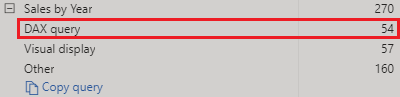
After analyzing the query, you can use your own knowledge and experience to identify where the performance issues are. You can also try using different DAX functions to see whether they improve performance. In the following example, the FILTER function was replaced with the KEEPFILTER function. When the test was run again in Performance Analyzer, the duration was shorter as a result of the replaced function.
DAXCopy
Count Customers =
CALCULATE(
    DISTINCTCOUNT(Order[ProductID]),
    KEEPFILTERS(Order[OrderQty] >= 5)
)
In this case, you can replace the FILTER function with the KEEPFILTER function to significantly reduce the evaluation duration time for this query. When you make this change, to check whether the duration time has improved or not, clear the data cache and then repeat the Performance Analyzer process.
Semantic model
If the duration of measures and visuals display low values (in other words they have a short duration time), they're not the reason for the performance issues. Instead, if the DAX query displays a high duration value, it's likely that a measure is written poorly or an issue has occurred with the semantic model. The issue might be caused by the relationships, columns, or metadata in your model, or it could be that the Auto date/time option is enabled, as described in the following section.
Relationships
You should review the model relationships between tables to ensure that you have established the correct relationships. Check that relationship cardinality properties are correctly set up. For example, a one-side column that contains unique values might be incorrectly configured as a many-side column. You'll learn more about how cardinality affects performance later in this module.
Columns
It's best practice to not import columns of data that you don't need. To avoid deleting columns in Power Query, you should try to deal with them at the source when loading data into Power BI Desktop. However, if it's impossible to remove redundant columns from the source query or the data has already been imported in its raw state, you can always use Power Query to examine each column. Ask yourself whether you really need each column and try to identify the benefit that each adds to your semantic model. If you find that a column adds no value, you should remove it from your semantic model. For example, suppose that you have an ID column with thousands of unique rows. You know that you won't use this particular column in a relationship, so it won't be used in a report. Therefore, you should conclude that this column as unnecessary and admit that it's wasting space in your semantic model.
When you remove an unnecessary column, you reduce the size of the semantic model which, in turn, results in a smaller file size and faster refresh time. Also, because the semantic model contains only relevant data, the overall report performance should improve.
For more information, see Data reduction techniques for Import modeling.
Metadata
Metadata is information about other data. Power BI metadata contains information on your semantic model, such as the name, data type and format of each of the columns, the schema of the database, the report design, when the file was last modified, the data refresh rates, and more.
When you load data into Power BI Desktop, it's good practice to analyze the corresponding metadata so you can identify any inconsistences with your semantic model and normalize the data before you start to build reports. Running analysis on your metadata should improve semantic model performance because, while analyzing your metadata, you'll possibly identify unnecessary columns, errors within your data, incorrect data types, the volume of data being loaded (large semantic models, including transactional or historic data, will take longer to load), and more.
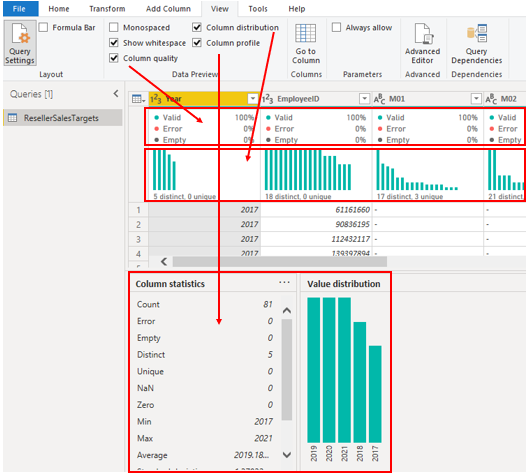
You can use Power Query in Power BI Desktop to examine the columns, rows, and values of your source data. You can then use the available tools, such as those highlighted in the following image, to make the necessary changes.

The Power Query options include:
Unnecessary columns - Evaluates the need for each column. If one or more columns won't be used in the report and are therefore unnecessary, you should remove them by using the Remove Columns option.
Unnecessary rows - Checks the first few rows in the semantic model to see whether they're empty or whether they contain data that you don't need in your reports; if so, it removes those rows by using the Remove Rows option.
Data type - Evaluates the column data types to ensure that each one is correct. If you identify a data type that's incorrect, change it by selecting the column, selecting Data Type on the Transform ribbon tab, and then selecting the correct data type from the list.
Query names - Examines the query (table) names in the Queries pane. Just like you did for column header names, you should change uncommon or unhelpful query names to names that are more obvious or names that the user is more familiar with. You can rename a query by right-clicking that query, selecting Rename, editing the name as required, and then pressing Enter.
Column details - Power Query has the following three data preview options that you can use to analyze the metadata that's associated with your columns. You can find these options on the View ribbon tab, as shown in the following screenshot.
Column quality - Determines what percentage of items in the column are valid, have errors, or are empty. If the valid percentage is not 100 percent, you should investigate the reason, correct the errors, and populate empty values.
Column distribution - Displays frequency and distribution of the values in each of the columns. You'll investigate this further later in this module.
Column profile - Shows column statistics chart and a column distribution chart.
Note
If you're reviewing a query with more than 1,000 rows, and you want to analyze that whole semantic model, you need to change the default option at the bottom of the window. Select Column profiling based on top 1000 rows \> Column profiling based on entire data set.

Other metadata that you should consider is the information about the semantic model as a whole, such as the file size and data refresh rates. You can find this metadata in the associated Power BI Desktop (.pbix) file. The data that you load into Power BI Desktop is compressed and stored to disk by the VertiPaq storage engine. The size of your semantic model has a direct impact on its performance; a smaller sized semantic model uses less resources (memory) and achieves faster data refresh, calculations, and rendering of visuals in reports.
Auto date/time feature
Another item to consider when optimizing performance is the Auto date/time option in Power BI Desktop. By default, this feature is enabled globally, which means that Power BI Desktop automatically creates a hidden calculated table for each date column, provided that certain conditions are met. The new, hidden tables are in addition to the tables that you already have in your semantic model.
The Auto date/time option allows you to work with time intelligence when filtering, grouping, and drilling down through calendar time periods. We recommend that you keep the Auto date/time option enabled only when you work with calendar time periods and when you have simplistic model requirements in relation to time.
If your data source already defines a date dimension table, that table should be used to consistently define time within your organization, and you should disable the global Auto date/time option. Disabling this option can lower the size of your semantic model and reduce the refresh time.
You can enable/disable the Auto date/time option globally so that it applies to all of your Power BI Desktop files, or you can enable/disable the option for the current file so that it applies only to an individual file.
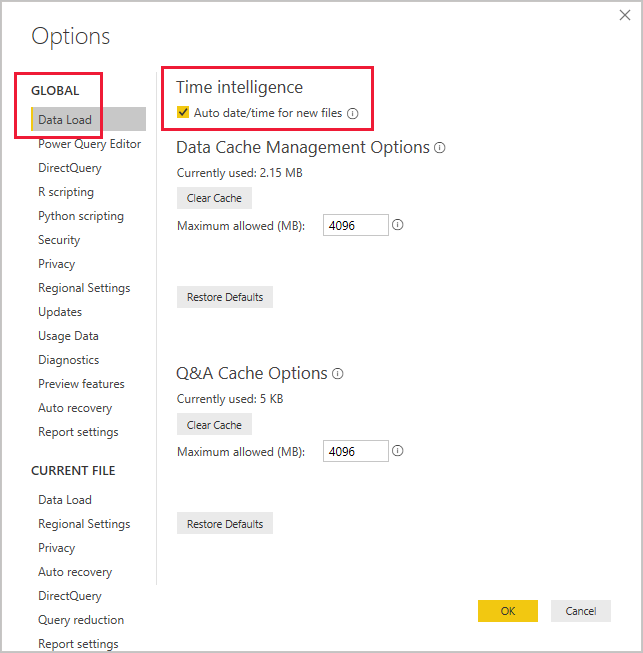
To enable/disable the Auto date/time option, go to File \> Options and settings \> Options, and then select either the Global or Current File page. On either page, select Data Load and then, in the Time Intelligence section, select or clear the check box as required.
For an overview and general introduction to the Auto date/time feature, see Apply auto date/time in Power BI Desktop.
[4] Use variables to improve performance and troubleshooting
You can use variables in your DAX formulas to help you write less complex and more efficient calculations. Variables are underused by developers who are starting out in Power BI Desktop, but they're effective and you should use them by whenever you can.
Some expressions involve the use of many nested functions and the reuse of expression logic. These expressions take a longer time to process and are difficult to read and, therefore, troubleshoot. If you use variables, you can save query processing time. This change is a step in the right direction toward optimizing the performance of a semantic model.
The use of variables in your semantic model provides the following advantages:
Improved performance - Variables can make measures more efficient because they remove the need for Power BI to evaluate the same expression multiple times. You can achieve the same results in a query in about half the original processing time.
Improved readability - Variables have short, self-describing names and are used in place of an ambiguous, multi-worded expression. You might find it easier to read and understand the formulas when variables are used.
Simplified debugging - You can use variables to debug a formula and test expressions, which can be helpful during troubleshooting.
Reduced complexity - Variables don't require the use of
EARLIERorEARLIESTfunctions, which are difficult to understand. These functions were required before variables were introduced, and were written in complex expressions that introduced new filter contexts. Now that you can use variables instead of those functions, you can write fewer complex formulas.
Use variables to improve performance
To illustrate how you can use a variable to make a measure more efficient, the following table displays a measure definition in two different ways. Notice that the formula repeats the expression that calculates "same period last year" but in two different ways: the first instance uses the normal DAX calculation method and the second one uses variables in the calculation.
The second row of the table shows the improved measure definition. This definition uses the VAR keyword to introduce a variable named SalesPriorYear, and it uses an expression to assign the "same period last year" result to that new variable. It then uses the variable twice in the DIVIDE function.
Without variable
DAXCopy
Sales YoY Growth =
DIVIDE(
    ([Sales] - CALCULATE([Sales], PARALLELPERIOD('Date'[Date], -12, MONTH))),
    CALCULATE([Sales], PARALLELPERIOD('Date'[Date], -12, MONTH))
)
With variable
DAXCopy
Sales YoY Growth =
VAR SalesPriorYear =
    CALCULATE([Sales], PARALLELPERIOD('Date'[Date], -12, MONTH))
VAR SalesVariance =
    DIVIDE(([Sales] - SalesPriorYear), SalesPriorYear)
RETURN
    SalesVariance
In the first measure definition, the formula is inefficient because it requires Power BI to evaluate the same expression twice. The second definition is more efficient because, thanks to the variable, Power BI only needs to evaluate the PARALLELPERIOD function once.
If your semantic model has multiple queries with multiple measures, the use of variables could reduce the overall query processing time in half and improve the overall performance of the semantic model. Furthermore, this solution is a simple one; imagine the savings as the formulas get more complicated, for instance, when you are working with percentages and running totals.
Use variables to improve readability
In addition to improved performance, you might notice how the use of variables makes your code simpler to read.
When using variables, it's best practice to use descriptive names for the variables. In the previous example, the variable is named SalesPriorYear, which clearly states what the variable is calculating. Consider the outcome of using a variable that was named X, temp or variable1; the purpose of the variable would not be clear at all.
Using clear, concise, meaningful names will help make it easier for you to understand and document what you're calculating, and it's much simpler for other developers to maintain in the future.
Use variables to troubleshoot multiple steps
You can use variables to help you debug a formula and identify what the issue is. Variables help simplify the task of troubleshooting your DAX calculation by evaluating each variable separately and by recalling them in the RETURN clause.
In the following example, you test an expression that's assigned to a variable. In order to debug you temporarily rewrite the RETURN clause to return the variable. The measure definition returns only the SalesPriorYear variable because that's what comes after the RETURN expression.
DAXCopy
Sales YoY Growth % =
VAR SalesPriorYear =  CALCULATE([Sales], PARALLELPERIOD('Date'[Date], -12, MONTH))
VAR SalesPriorYear% = DIVIDE(([Sales] - SalesPriorYear), SalesPriorYear)
RETURN SalesPriorYear%
The RETURN clause returns only the SalesPriorYear% variable. This technique allows you to revert the expression when you have completed the debugging. It also makes calculations simpler to understand due to reduced complexity of the DAX code.
[5] Reduce cardinality
Cardinality is a term that's used to describe the uniqueness of the values in a column. Cardinality is also used in the context of model relationships, where it describes the direction of the relationship.
Identify cardinality levels in columns
Previously, when you used Power Query to analyze the metadata, the Column distribution option on the View ribbon tab displayed statistics on how many distinct and unique items were in each column in the data.
Distinct values count - The total number of different values found in a given column.
Unique values count - The total number of values that only appear once in a given column.
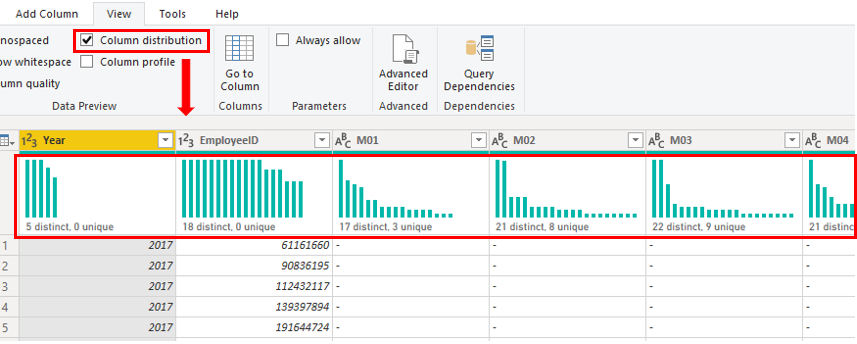
A column that has many repeated values in its range (unique count is low) has a low level of cardinality. Conversely, a column that has many unique values in its range (unique count is high) has a high level of cardinality.
Lower cardinality leads to more optimized performance, so you should try to reduce the number of high cardinally columns in your semantic model.
Reduce relationship cardinality
When you import multiple tables, it's possible that you'll do some analysis by using data from all those tables. Relationships between those tables are necessary to accurately calculate results and display the correct information in your reports. Power BI Desktop helps make creating those relationships easier. In fact, in most cases, you won't need to do anything because the autodetect feature can do it for you. However, you might occasionally need to create relationships or make changes to a relationship. Regardless, it's important to understand relationships in Power BI Desktop and how to create and edit them.
When you create or edit a relationship, you can configure other options. By default, Power BI Desktop automatically configures other options based on its assessment of the model data, which can be different for each relationship based on the data in the columns.
The relationships can have different cardinality. Cardinality is the direction of the relationship, and each model relationship must be defined with a cardinality type. The cardinality options in Power BI are:
Many-to-one (*:1) - This relationship is the most common. It means that the column in one table can have more than one instance of a value, and the other related table, often known as the lookup table, has only one instance of a value.
One-to-one (1:1) - The column in one table has only one instance of a particular value, and the other related table has only one instance of a particular value.
One-to-many (1:*) - The column in one table has only one instance of a particular value, and the other related table can have more than one instance of a value.
Many-to-many (*:*) - With composite models, you can establish a many-to-many relationship between tables, which removes requirements for unique values in tables. It also removes previous workarounds, such as introducing new tables only to establish relationships.
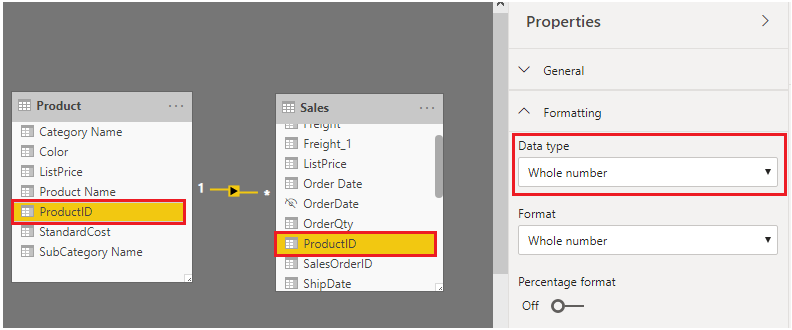
During development, you create and edit relationships in your model, so when you're building new relationships in your model, regardless of what cardinality you have chosen, always ensure that both of the columns that you are using to participate in a relationship have the same data type. Your model will never work if you try to build a relationship between two columns, where one column has a text data type and another column has an integer data type.
In the following example, the ProductID column has the Whole number data type in both the Product and Sales tables. The columns with data type Integer perform better than columns with data type Text.
Improve performance by reducing cardinality levels
Power BI Desktop offers different techniques that you can use to help reduce the data that's loaded into semantic models, such as summarization. Reducing the data that's loaded into your model improves the relationship cardinality of the report. For this reason, it's important that you strive to minimize the data that's loaded into your models. That's especially true for large models, or models that you anticipate will grow to become large over time.
Perhaps the most effective technique to reduce a model size is to use a summary table from the data source. Where a detail table might contain every transaction, a summary table might contain one record per day, per week, or per month. It might be a sum of all of the transaction amounts per day, for instance.
For example, a source sales fact table stores one row for each order line. Significant data reduction could be achieved by summarizing all sales metrics when you group by date, customer, and product, and individual transaction detail isn't needed.
Consider, then, that you can achieve an even more significant data reduction by summarizing at month level. It could achieve a possible 99 percent reduction in model size; but, reporting at day level or an individual order level is no longer possible. Deciding to summarize fact data always involves a tradeoff with the detail of your data. A disadvantage is that you might lose the ability to drill into data because the detail no longer exists. This tradeoff could be mitigated by using a Composite model.
In Power BI Desktop, a Composite model allows you to determine a storage mode for each table. Therefore, each table can have its Storage Mode property set as Import or DirectQuery.
An effective technique to reduce the model size is to set the Storage Mode property for larger fact tables to DirectQuery. This design approach can work well in conjunction with techniques that are used to summarize your data. For example, the summarized sales data could be used to achieve high performance "summary" reporting. You could then create a drillthrough page to display granular sales for a specific (and narrow) filter context, displaying all in-context sales orders. The drillthrough page could include visuals based on a DirectQuery table to retrieve the sales order data (sales order details).
For more information, see Data reduction techniques for Import modeling.
[6] Optimize DirectQuery models with table level storage
DirectQuery is a storage mode where Power BI connects directly to the data source. It is an alternative to importing data into model tables.
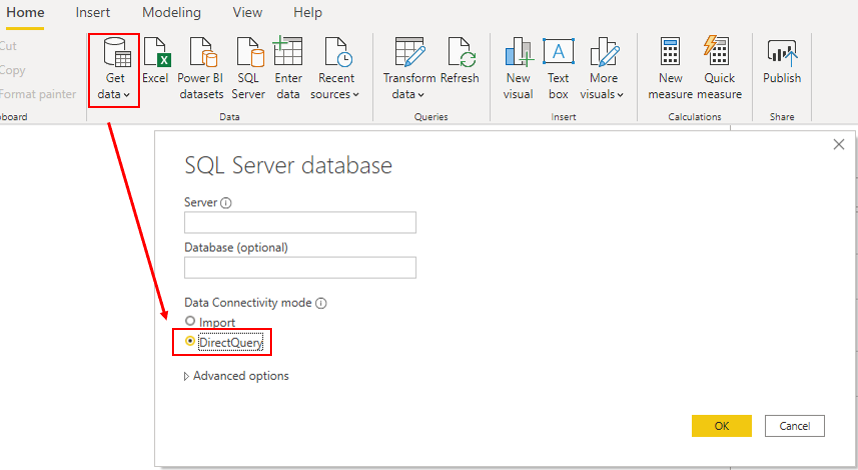
When you use the DirectQuery storage mode, query response times depend heavily on the performance of the underlying data source. Slow query response times lead to a negative user experience and, in the worst-case scenarios, queries might time out. Also, the number of users who are opening the reports at any one time impact the load that's placed on the data source. For example, if a report page has 20 visuals and 10 people opening that page, 200 queries (or more) will be sent to the data source because each visual will issue one or more queries.
Unfortunately, the performance of your semantic model is not only impacted by the performance of the underlying data source, but also by other uncontrollable factors, such as:
Network latency; faster networks return data quicker.
The performance of the data source's server and how many other workloads are on that server. For example, consider the implications of a server refresh taking place while hundreds of people are using the same server for different reasons.
Therefore, using DirectQuery poses a risk to the quality of your model's performance. To optimize performance in this situation, you need to have control over, or access to, the source database.
For more detailed information, see DirectQuery model guidance in Power BI Desktop.
Implications of using DirectQuery
It's best practice to import data into your model tables, but your organization might need to use the DirectQuery storage mode because of one of the following reasons (benefits of DirectQuery):
It's suitable in cases where data changes frequently and near real-time reporting is required.
It can handle large data without the need to pre-aggregate.
It applies data sovereignty restrictions to comply with legal requirements.
It can be used with a multidimensional data source that contains measures such as SAP Business Warehouse (BW).
If your organization wants to use DirectQuery, you should clearly understand its behavior and be aware of its limitations. You will then be in a good position to take action to optimize the DirectQuery model as much as possible.
Behavior of DirectQuery connections
When you use DirectQuery to connect to data in Power BI Desktop, that connection behaves in the following way:
When you initially use the Get Data feature in Power BI Desktop, you will select the source. If you connect to a relational source, you can select a set of tables and each one will define a query that logically returns a set of data. If you select a multidimensional source, such as SAP BW, you can only select the source.
When you load the data, no data is imported into the Power BI Desktop, only the schema is loaded. When you add a visual to a report, queries are sent to the underlying source to retrieve the necessary data. The time it takes to refresh the visual depends on the performance of the underlying data source.
If changes are made to the underlying data, they won't be immediately reflected in the existing visuals due to caching. You need to carry out a refresh to see those changes. The necessary queries are present for each visual, and the visuals are updated accordingly.
When you publish the Power BI Desktop file to the Power BI service, it publishes a semantic model. However, no data is included with that semantic model.
When you open an existing report in Power BI service (or build a new one), the underlying source is again queried to retrieve the necessary data. Depending on the location of the original source, you might have to configure an on-premises data gateway.
You can pin visuals, or entire report pages, as dashboard tiles. The tiles are automatically refreshed on a schedule, for example, every hour. You can control the frequency of this refresh to meet your requirements. When you open a dashboard, the tiles reflect the data at the time of the last refresh and might not include the latest changes that are made to the underlying data source. You can always refresh an open dashboard to ensure that it's up to date.
Limitations of DirectQuery connections
The use of DirectQuery can have negative implications. The limitations vary, depending on the specific data source that is being used. You should take the following points into consideration:
Performance - As previously discussed, your overall user experience depends heavily on the performance of the underlying data source.
Security - If you use multiple data sources in a DirectQuery model, it's important to understand how data moves between the underlying data sources and the associated security implications. You should also identify whether security rules are applicable to the data in your underlying source because, in Power BI, every user can see that data.
Data transformation - Compared to imported data, data that is sourced from DirectQuery has limitations when it comes to applying data transformation techniques with Power Query. For example, if you connect to an OLAP source, such as SAP BW, you can't make any transformations at all; the entire external model is taken from the data source. If you want to make any transformations to the data, you will need to do so in the underlying data source.
Modeling - Some of the modeling capabilities that you have with imported data aren't available, or are limited.
Reporting - Almost all the reporting capabilities that you have with imported data are also supported for DirectQuery models, provided that the underlying source offers a suitable level of performance.
For more detailed information on the limitations of using DirectQuery, see Implications of using DirectQuery.
Now that you have an understanding of how DirectQuery works and its limitations, you can take action to improve the performance.
Optimize performance
Continuing with the Tailwind Traders scenario, during your review of the semantic model, you discover that the model uses DirectQuery to connect to source data. This use of DirectQuery is the reason why users are experiencing poor report performance. It's taking too long to load the pages in the report, and tables are not refreshing quickly enough when certain selections are made. You need to take action to optimize the performance of the DirectQuery model.
You can examine the queries that are being sent to the underlying source and try to identify the reason for the poor query performance. You can then make changes in Power BI Desktop and the underlying data source to optimize overall performance.
Optimize data in Power BI Desktop
When you've optimized the data source as much as possible, you can take further action within Power BI Desktop by using Performance Analyzer, where you can isolate queries to validate query plans.
You can analyze the duration of the queries that are being sent to the underlying source to identify the queries that are taking a long time to load. In other words, you can identify where bottlenecks exist.
You don't need to use a special approach when optimizing a DirectQuery model; you can apply the same optimization techniques that you use to tune imported data. For example, you can reduce the number of visuals on the report page or reduce the number of fields that are used in a visual. You can also remove unnecessary columns and rows.
For more detailed guidance on how to optimize a DirectQuery query, see: DirectQuery model guidance in Power BI Desktop and Guidance for using DirectQuery successfully.
Optimize the underlying data source (connected database)
Your first stop is the data source. You need to tune the source database as much as possible because anything you do to improve the performance of that source database will in turn improve Power BI DirectQuery. The actions that you take in the database will do the most good.
Consider the use of the following standard database practices that apply to most situations:
Avoid the use of complex calculated columns because the calculation expression will be embedded into the source queries. It's more efficient to push the expression back to the source because it avoids the push down. You could also consider adding surrogate key columns to dimension tables.
Review source table indexes and verify that the current indexing is optimal. If you need to create new indexes, ensure that they're appropriate.
Refer to the guidance documents of your data source and implement their performance recommendations.
Customize the Query reduction options
Power BI Desktop gives you the option to send fewer queries and to disable certain interactions that will result in a poor experience when the resulting queries take a long time to run. Applying these options prevents queries from continuously hitting the data source, which should improve performance.
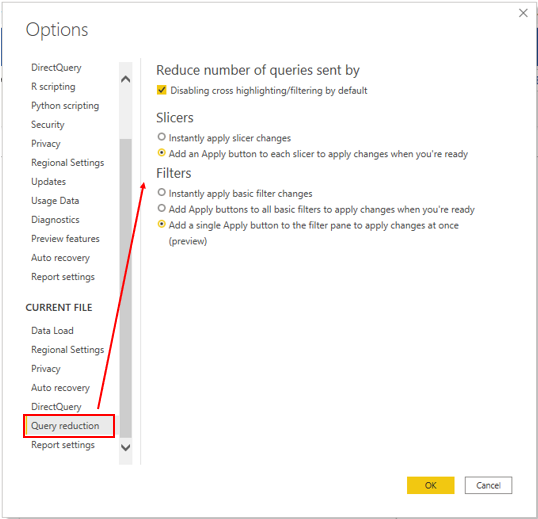
In this example, you edit the default settings to apply the available data reduction options to your report. You access the settings by selecting File \> Options and settings \> Options, scrolling down the page, and then selecting the Query reduction option.
The following query reduction options are available:
Reduce number of queries sent by - By default, every visual interacts with every other visual. Selecting this check box disables that default interaction. You can then choose which visuals interact with each other by using the Edit interactions feature.
Slicers - By default, the Instantly apply slicer changes option is selected. To force the report users to manually apply slicer changes, select the Add an apply button to each slicer to apply changes when you're ready option.
Filters - By default, the Instantly apply basic filter changes option is selected. To force the report users to manually apply filter changes, select one of the alternative options:
Add an apply button to all basic filters to apply changes when you're ready
Add a single apply button to the filter pane to apply changes at once (preview)
[7] Create and manage aggregations
When aggregating data, you summarize that data and present it in at a higher level of granularity. For example, you can summarize sales data and group it by date, customer, product, and so on. The aggregation process reduces the table sizes in the semantic model, allowing you to focus on important data and helping to improve the query performance.

Your organization might decide to use aggregations in their semantic models for the following reasons:
You work with large volumes of data. In this case, aggregations provide better query performance and help you analyze and reveal the insights over this large data. Aggregated data is cached and, therefore, uses a fraction of the resources that are required for detailed data.
You experience a slow data refresh. In this case, aggregations help to speed up the refresh process. The smaller cache size reduces the refresh time, so data gets to users faster. Instead of refreshing what could be millions of rows, you refresh a smaller amount of data instead.
You have a large semantic model. In this case, aggregations help to reduce and maintain the size of your model.
You anticipate future growth of your semantic model. In this case, you can use aggregations as a proactive step toward future proofing your semantic model by lessening the potential for performance and refresh issues and overall query problems.
Continuing with the Tailwind Traders scenario, you have taken several steps to optimize the performance of the semantic model, but the IT team has informed you that the file size is still too large. The file size is currently 1 gigabyte (GB), so you need to reduce it to around 50 megabytes (MB). During your performance review, you identified that the previous developer didn't use aggregations in the semantic model, so you now want to create aggregations for the sales data to reduce the file size and further optimize the performance.
Create aggregations
Before you create aggregations, you should decide on the level of granularity on which you want to create them. In this example, you want to aggregate the sales data at the day level.
When you decide on the grain, the next step is to decide on how you want to create the aggregations. You can create aggregations in different ways and each method will yield the same results, for example:
If you have access to the database, you can create a table (or view) and then import it into Power BI Desktop.
In Power BI Desktop, you can use Power Query to create the aggregations step-by-step.
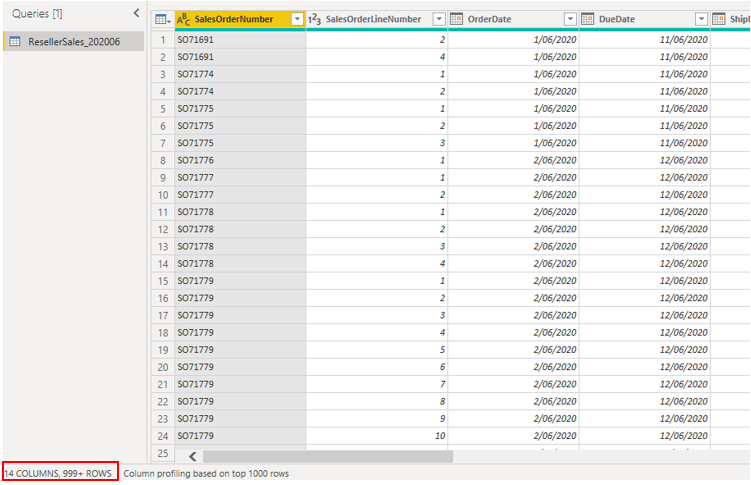
In this example, you open a query in Power Query and notice that the data has not been aggregated; it has over 999 rows, as illustrated the following screenshot.
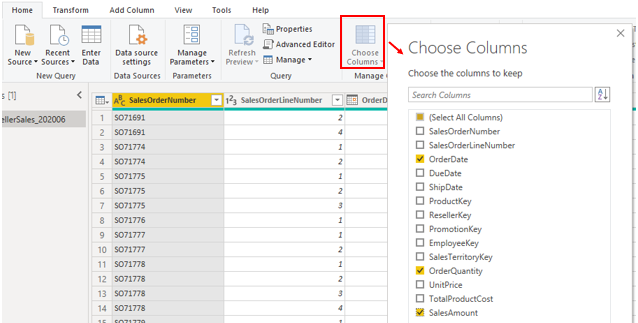
You want to group by the OrderDate column and summarize the OrderQuantity and SalesAmount columns. Start by selecting Choose Columns on the Home ribbon tab. In the window that opens, select the columns that you want in the aggregation, and then select OK.
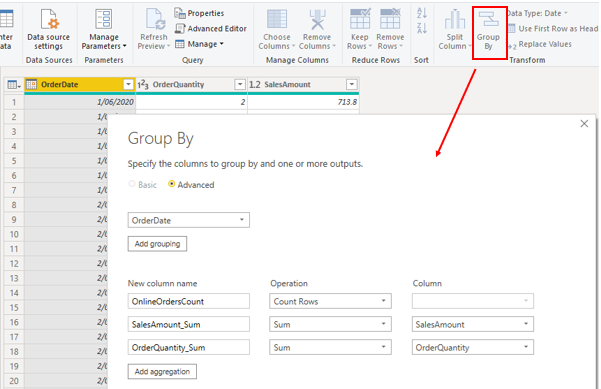
When the selected columns display on the page, select the Group By option on the Home ribbon tab. In the window that opens, select the column that you want to group by (OrderDate) and enter a name for the new column (OnlineOrdersCount).
Select the Advanced option, and then select the Add aggregation button to configure another column row. Enter a name for the aggregation column, select the operation of the column, and then select the column to which you want to link the aggregation. Repeat these steps until you have added all the aggregations, and then select OK.
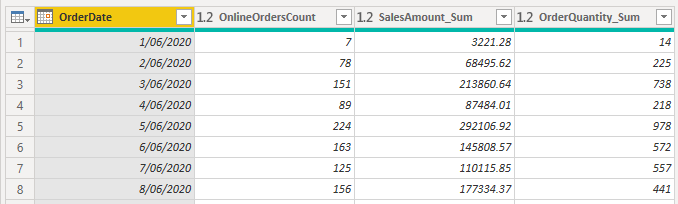
It might take a few minutes for a preview of your aggregation to display, but when it does, you'll see how the data has been transformed. The data will be aggregated into each date, and you will be able to see the values for the orders count and the respective sum of the sales amount and order quantity.
Select the Close and Apply button to close Power Query Editor and apply the changes to your semantic model. In Power BI Desktop, on the Home ribbon tab, select Refresh. Observe the screen because a brief message will display the number of rows that your semantic model has loaded. This number of rows should be significantly less than the number that you started with. You can also see this number when you open Power Query Editor again, as illustrated in the following screenshot. In this example, the number of rows was reduced to 30.

Remember, you started with 999+ rows. Using aggregation has significantly reduced the number of rows in your semantic model, which means that Power BI has less data to refresh and your model should perform better.
Manage aggregations
You can later manage aggregations in Power BI Desktop to make changes to their behavior, if required.
You can open the Manage Aggregations window from any view in Power BI Desktop. In the Data pane, right-click the table and then select Manage aggregations.
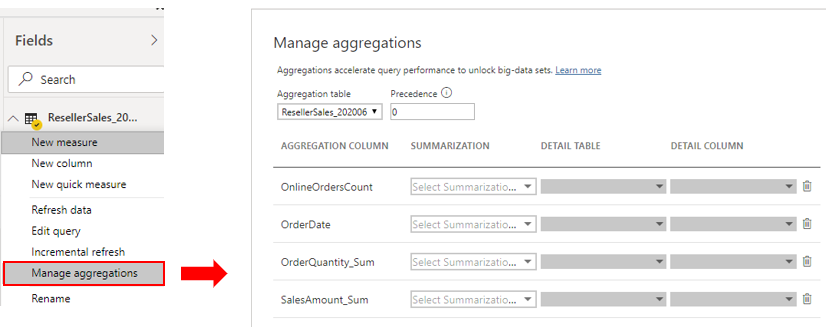
For each aggregation column, you can select an option from the Summarization dropdown list and make changes to the selected detail table and column. When you are finished managing the aggregations, select Apply All.
For more detailed information on how to create and manage aggregations, see Use aggregations in Power BI Desktop.
[8] Check your knowledge
Answer the following questions to see what you've learned.
[1] What benefit do you get from analyzing the metadata?
a. The benefit of analyzing the metadata is that you can clearly identify data inconsistences with your semantic model.
b. The benefit of analyzing the metadata is to get familiar with your data.
c. The benefit of analyzing the metadata is to know the number of rows, columns, and tables being loaded into your model.
[2] What can be achieved by removing unnecessary rows and columns?
a. It isn't necessary to delete unnecessary rows and columns and it's a good practice to keep all metadata intact.
b. Deleting unnecessary rows and columns reduces a semantic model size and it's good practice to load only necessary data into your semantic model.
c. Deleting unnecessary rows and columns can damage the structure of the semantic model.
[3] Which of the following statements about relationships in Power BI Desktop is true?
a. Relationships can only be created between columns that contain the same data type.
b. Relationships can only be created between tables that contain the same number of rows.
c. Relationships can be created between tables that contain different types of data.
[9] Summary
In this module's scenario, one of your organization's semantic models was inefficient and causing problems. Users were dissatisfied with the report performance, and the model's file size was too large, so it was placing a strain on the organization's resources.
You were asked to review the semantic model to identify the cause of the performance issues and make changes to optimize performance and reduce the size of the model.
Power BI Desktop provides a range of tools and features for you to analyze and optimize the performance of its semantic models. You started the optimization process by using Performance analyzer and other tools to review the performance of measures, relationships, and visuals, and then made improvements based on the analysis results. Next, you used variables to write less complex and more efficient calculations. You then took a closer look at the column distribution and reduced the cardinality of your relationships. At that stage, the semantic model was more optimized. You considered how the situation would be different if your organization used a DirectQuery model, and then you identified how to optimize performance from Power BI Desktop and the source database. Finally, you used aggregations to significantly reduce the size of the semantic model.
If Power BI Desktop didn't give you the opportunity to optimize inefficient semantic models, you would have to spend a lot of time in your multiple data sources to improve the data there. In particular, without Performance Analyzer, you wouldn't have identified the reasons for the performance issues in your reports and the bottlenecks in the queries that need to be cleared. As a result, users would be frustrated and unmotivated and might avoid using the reports.
Now that you have optimized the report, users can access the data that they need in a faster time, so they are more productive and have greater job satisfaction. The reduction that you made to the model's file size will ease the strain on resources, bringing about a range of benefits to your organization. You have successfully accomplished the task you were given.
Source:
https://learn.microsoft.com/en-us/training/modules/optimize-model-power-bi