Power BI 101: Connect to data in Power BI Desktop

Mohamad's interest is in Programming (Mobile, Web, Database and Machine Learning). He is studying at the Center For Artificial Intelligence Technology (CAIT), Universiti Kebangsaan Malaysia (UKM).
In this article
In this quickstart, you connect to data using Power BI Desktop, which is the first step in building data models and creating reports.
Prerequisites
To complete the steps in this article, you need the following resources:
Download and install Power BI Desktop, which is a free application that runs on your local computer. You can download Power BI Desktop directly, or you can get it from the Microsoft Store.
Download this sample Excel workbook (Financial Sample.xlsx)
Launch Power BI Desktop
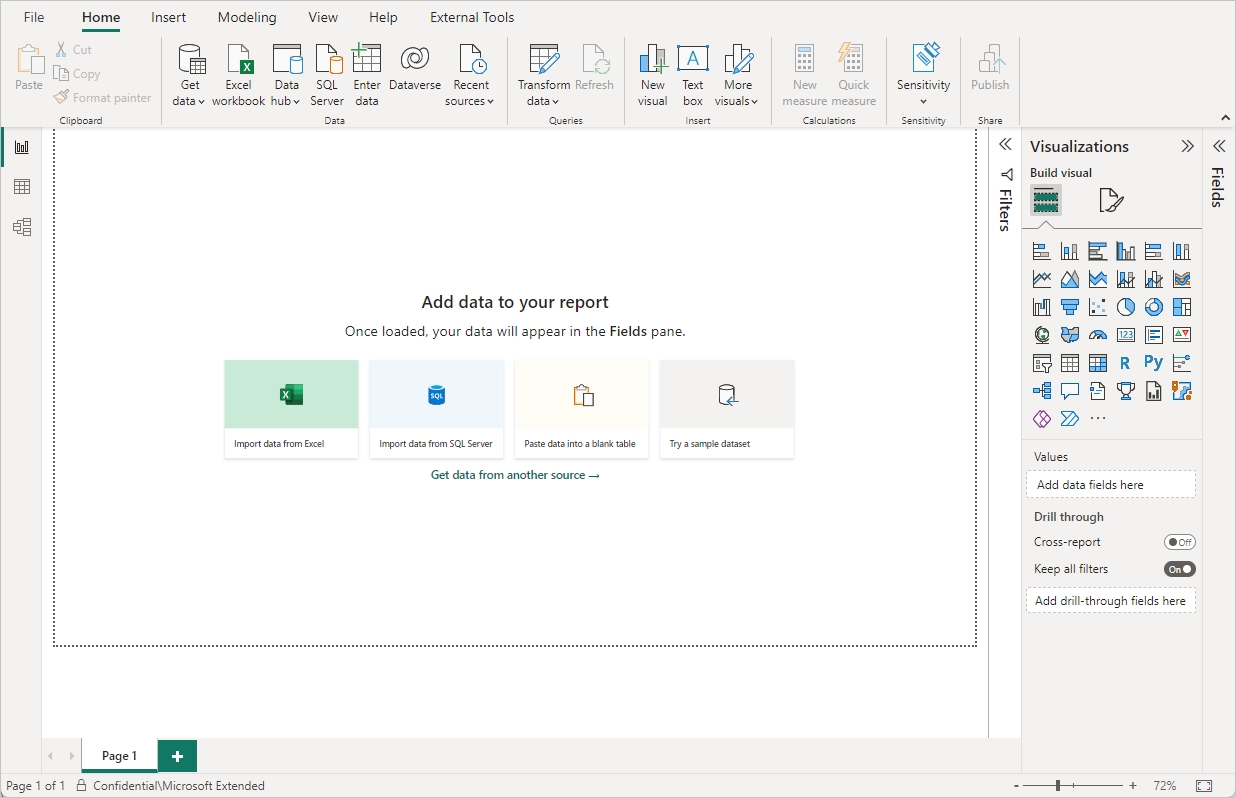
Once you install Power BI Desktop, launch the application so it's running on your local computer. You're presented with a Power BI tutorial. Follow the tutorial or close the dialog to start with a blank canvas. The canvas is where you create visuals and reports from your data.
Connect to data
With Power BI Desktop, you can connect to many different types of data. These sources include basic data sources, such as a Microsoft Excel file. You can connect to online services that contain all sorts of data, such as Salesforce, Microsoft Dynamics, Azure Blob Storage, and many more.
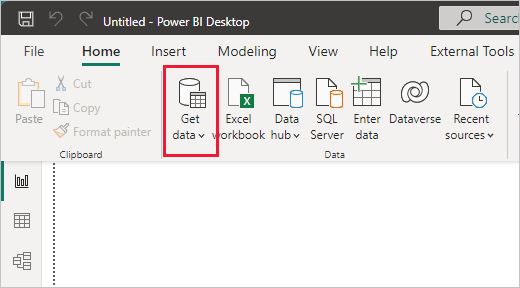
To connect to data, from the Home ribbon select Get data.
The Get Data window appears. You can choose from the many different data sources to which Power BI Desktop can connect. In this quickstart, use the Excel workbook that you have downloaded (Financial Sample.xlsx)
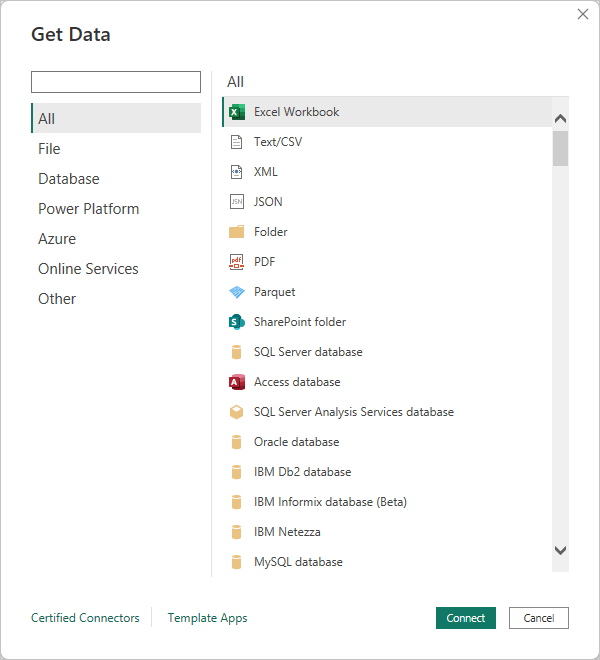
Since this data source is an Excel file, select Excel from the Get Data window, then select the Connect button.
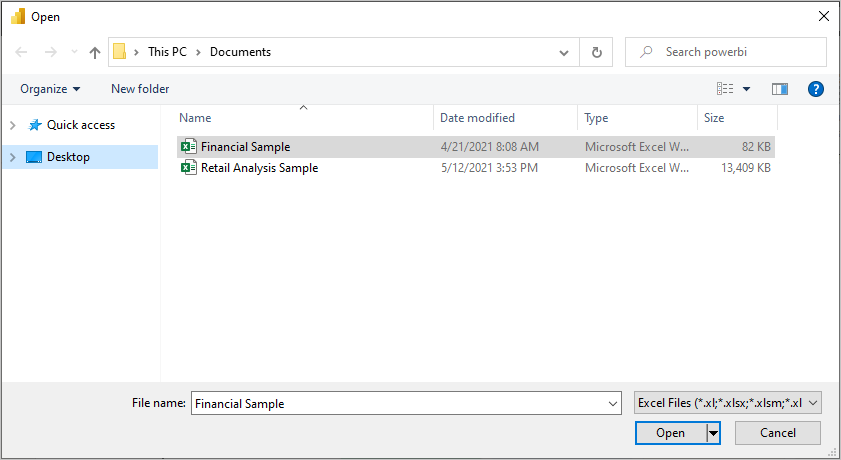
Power BI prompts you to provide the location of the Excel file to which to connect. The downloaded file is called Financial Sample. Select that file, and then select Open.
Power BI Desktop then loads the workbook and reads its contents, and shows you the available data in the file using the Navigator window. In that window, you can choose which data you would like to load into Power BI Desktop. Select the tables by marking the checkboxes beside each table you want to import. Import both available tables.
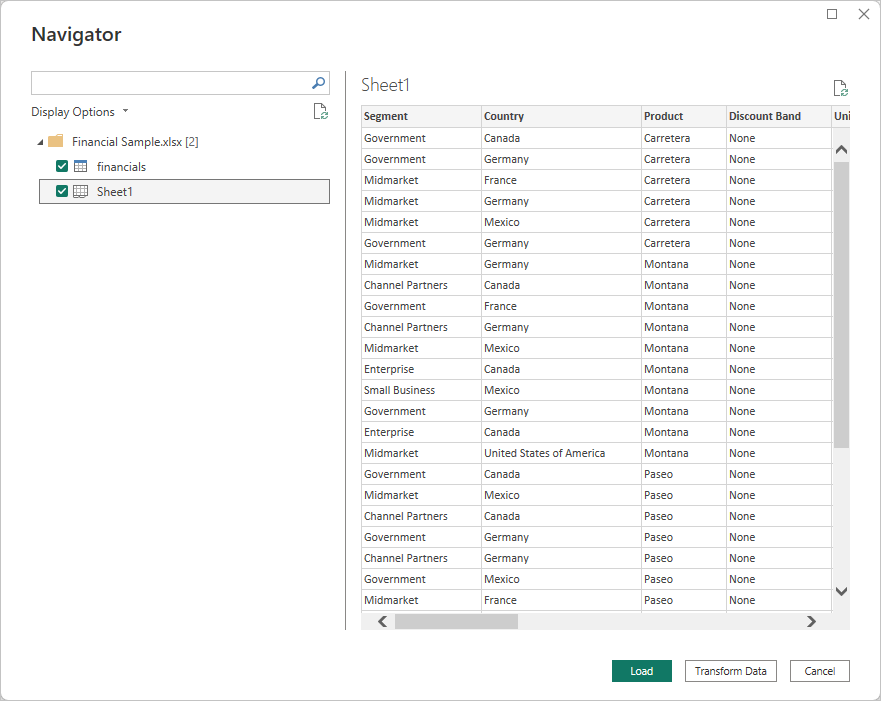
Once you've made your selections, select Load to import the data into Power BI Desktop.
View data in the Fields pane
Once you've loaded the tables, the Fields pane shows you the data. You can expand each table by selecting the arrow beside its name. In the following image, the financials table is expanded, showing each of its fields.
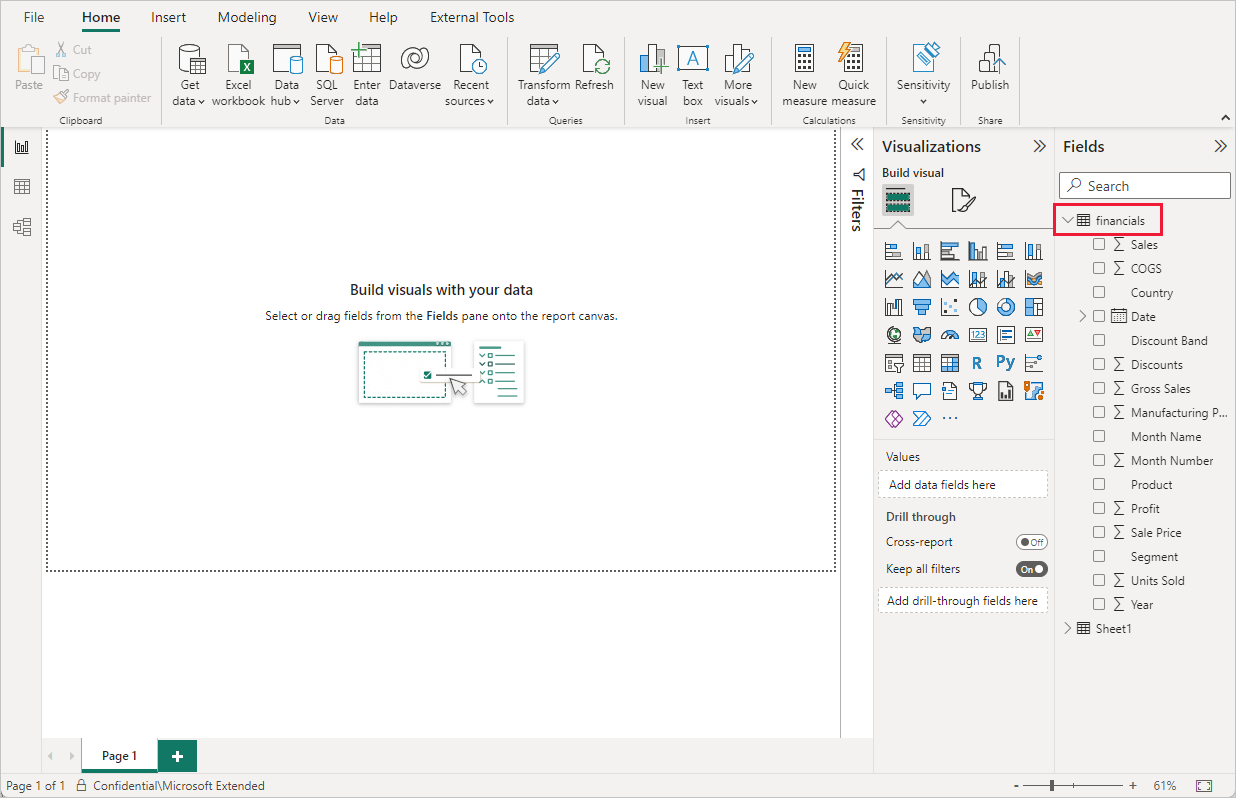
And that's it! You've connected to data in Power BI Desktop, loaded that data, and now you can see all the available fields within those tables.