Use DAX time intelligence functions in semantic models

Mohamad's interest is in Programming (Mobile, Web, Database and Machine Learning). He is studying at the Center For Artificial Intelligence Technology (CAIT), Universiti Kebangsaan Malaysia (UKM).
DAX time intelligence functions in Power BI enable users to analyze and compare data across different time periods, supporting insightful reporting on trends, growth, and performance over time.
Learning objectives
By the end of this module, you'll be able to:
Define time intelligence.
Use common DAX time intelligence functions.
Create useful intelligence calculations.
[1] Introduction
Time intelligence relates to calculations over time. Specifically, it relates to calculations over dates, months, quarters, or years, and possibly time. Rarely would you need to calculate over time in the sense of hours, minutes, or seconds.
In Data Analysis Expressions (DAX) calculations, time intelligence refers to modifying the filter context for date filters.
For example, at the Adventure Works company, their financial year begins on July 1 and ends on June 30 of the following year. They produce a table visual that displays monthly revenue and year-to-date (YTD) revenue.
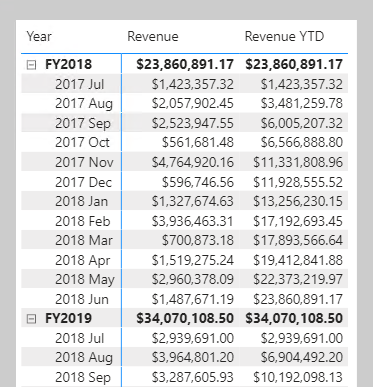
The filter context for 2017 August contains each of the 31 dates of August, which are stored in the Date table. However, the calculated year-to-date revenue for 2017 August applies a different filter context. It's the first date of the year through to the last date in filter context. In this example, that's July 1, 2017 through to August 31, 2017.
Time intelligence calculations modify date filter contexts. They can help you answer these time-related questions:
What's the accumulation of revenue for the year, quarter, or month?
What revenue was produced for the same period last year?
What growth in revenue has been achieved over the same period last year?
How many new customers made their first order in each month?
What's the inventory stock on-hand value for the company's products?
This module describes how to create time intelligence measures to answer these questions.
Note
Many units in this module present inline activities to follow along and create calculations. These activities are optional. If you want to complete the activities, you can download the Power BI Desktop file by using the links provided in the units.
At the end of this module, you have the opportunity to complete an exercise in a virtual machine to apply the lessons on how to create calculated tables, calculated columns, and simple measures using DAX.
[2] Use DAX time intelligence functions
DAX includes several time intelligence functions to simplify the task of modifying date filter context. You can write many of these intelligence formulas by using a CALCULATE function that modifies date filters, but that creates more work.
Note
Many DAX time intelligence functions work with standard date periods such as years, quarters, and months. If you have irregular time periods, like financial months that do not match the calendar, or if you need to work with weeks or shorter time periods, the built-in DAX functions will not help. In these cases, use the CALCULATE function with custom date or time filters.
Date table requirement
To work with time intelligence DAX functions, you need to meet the prerequisite model requirement of having at least one date table in your model. A date table is a table that is marked as a Date table. That table must have a column of data type Date (or date/time), known as the date column. The date column must:
Contain unique values.
Span full years.
Not contain BLANKs.
Not have any missing dates.
For more information, see Create date tables in Power BI Desktop.
Summarizations over time
One group of DAX time intelligence functions is concerned with summarizations over time:
DATESYTD- Returns a single-column table that contains dates for the year-to-date (YTD) in the current filter context. This group also includes theDATESMTDandDATESQTDfunctions for month-to-date (MTD) and quarter-to-date (QTD). You can pass these functions as filters into theCALCULATEfunction.TOTALYTD- Evaluates an expression for YTD in the current filter context. The equivalent QTD and MTD DAX functions ofTOTALQTDandTOTALMTDare also included.DATESBETWEEN- Returns a table that contains a column of dates that begins with a given start date and continues until a given end date.DATESINPERIOD- Returns a table that contains a column of dates that begins with a given start date and continues for the specified number of intervals.
Note
While the TOTALYTD function is simple to use, you're limited to passing in one filter expression. If you need to apply multiple filter expressions, use the CALCULATE function and then pass the DATESYTD function in as one of the filter expressions.
In the following example, you'll create your first time intelligence calculation that uses the TOTALYTD function. The syntax is as follows:
DAXCopy
TOTALYTD(<expression>, <dates>, [, <filter>][, <year_end_date>])
The function requires an expression and, as is common to all time intelligence functions, a reference to the date column of a marked date table. Optionally, a single filter expression or the year-end date can be passed in (required only when the year doesn't finish on December 31).
Download and open the Adventure Works DW 2020 M07.pbix file. Then, add the following measure definition to the Sales table that calculates YTD revenue. Format the measure as currency with two decimal places.
DAXCopy
Revenue YTD =
TOTALYTD(
    [Revenue],
    'Date'[Date],
    "6-30"
)
The year-end date value of "6-30" represents June 30.
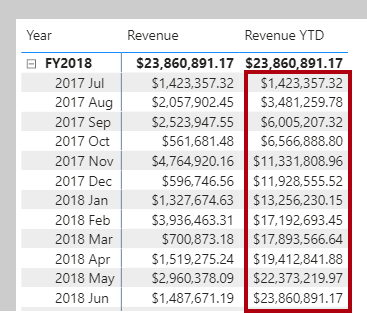
On Page 1 of the report, add the Revenue YTD measure to the matrix visual. Notice that it produces a summarization of the revenue amounts from the beginning of the year through to the filtered month.
Comparisons over time
Another group of DAX time intelligence functions is concerned with shifting time periods:
DATEADD- Returns a table that contains a column of dates, shifted either forward or backward in time by the specified number of intervals from the dates in the current filter context.PARALLELPERIOD- Returns a table that contains a column of dates that represents a period that is parallel to the dates in the specified dates column, in the current filter context, with the dates shifted a number of intervals either forward in time or back in time.SAMEPERIODLASTYEAR- Returns a table that contains a column of dates that are shifted one year back in time from the dates in the specified dates column, in the current filter context.Many helper DAX functions for navigating backward or forward for specific time periods, all of which returns a table of dates. These helper functions include
NEXTDAY,NEXTMONTH,NEXTQUARTER,NEXTYEAR, andPREVIOUSDAY,PREVIOUSMONTH,PREVIOUSQUARTER, andPREVIOUSYEAR.
Now, you'll add a measure to the Sales table that calculates revenue for the prior year by using the SAMEPERIODLASTYEAR function. Format the measure as currency with two decimal places.
DAXCopy
Revenue PY =
VAR RevenuePriorYear = CALCULATE(
    [Revenue],
    SAMEPERIODLASTYEAR('Date'[Date])
)
RETURN
    RevenuePriorYear
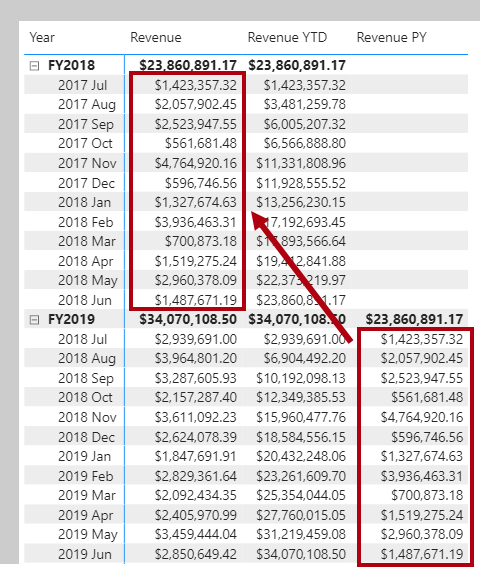
Add the Revenue PY measure to the matrix visual. Notice that it produces results that are similar to the previous year's revenue amounts.
Next, you'll modify the measure by renaming it to Revenue YoY % and then updating the RETURN clause to calculate the change ratio. Be sure to change the format to a percentage with two decimals places.
DAXCopy
Revenue YoY % =
VAR RevenuePriorYear = CALCULATE(
    [Revenue],
    SAMEPERIODLASTYEAR('Date'[Date])
)
RETURN
    DIVIDE(
        [Revenue] - RevenuePriorYear,
        RevenuePriorYear
    )
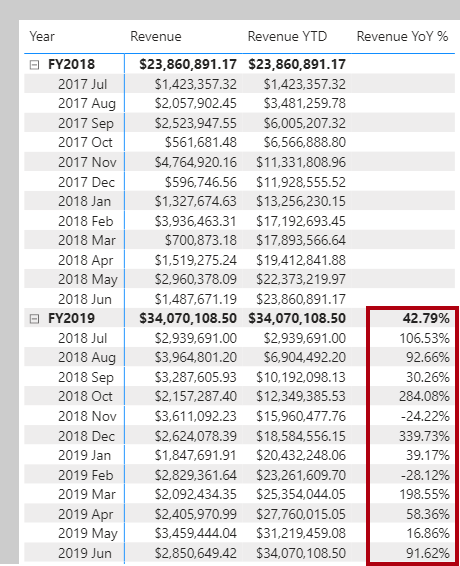
Notice that the Revenue YoY % measure produces a ratio of change factor over the previous year's monthly revenue. For example, July 2018 represents a 106.53 percent increase over the previous year's monthly revenue, and November 2018 represents a 24.22 percent decrease over the previous year's monthly revenue.
Note
The Revenue YoY % measure demonstrates a good use of DAX variables. The measure improves the readability of the formula and allows you to unit test part of the measure logic (by returning the RevenuePriorYear variable value). Additionally, the measure is an optimal formula because it doesn't need to retrieve the prior year's revenue value twice. Having stored it once in a variable, the RETURN clause uses to the variable value twice.
[3] Additional time intelligence calculations
Other DAX time intelligence functions exist that are concerned with returning a single date. In this unit, you learn about these functions by applying them in two different scenarios.
The FIRSTDATE and the LASTDATE functions return the first and last date in the current filter context for the specified column of dates.
Calculate new occurrences
Another use of time intelligence functions is to count new occurrences. The following example shows how you can calculate the number of new customers for a time period. A new customer is counted in the time period in which they made their first purchase.
Your first task is to add the following measure to the Sales table that counts the number of distinct customers life-to-date (LTD). Life-to-date means from the beginning of time until the last date in filter context. Format the measure as a whole number by using the thousands separator.
DAXCopy
Customers LTD =
VAR CustomersLTD =
    CALCULATE(
        DISTINCTCOUNT(Sales[CustomerKey]),
        DATESBETWEEN(
            'Date'[Date],
            BLANK(),
            MAX('Date'[Date])
        ),
        'Sales Order'[Channel] = "Internet"
    )
RETURN
    CustomersLTD
Add the Customers LTD measure to the matrix visual. Notice that it produces a result of distinct customers LTD until the end of each month.
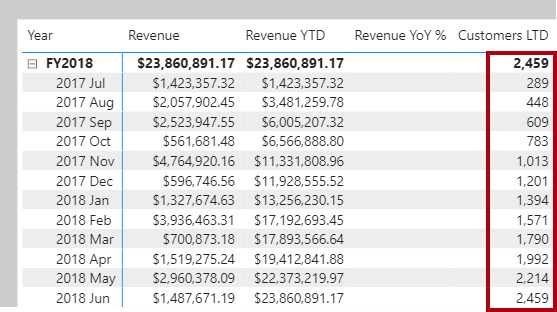
The DATESBETWEEN function returns a table that contains a column of dates that begins with a given start date and continues until a given end date. When the start date is BLANK, it uses the first date in the date column. (Conversely, when the end date is BLANK, it uses the last date in the date column.) In this case, the end date is determined by the MAX function, which returns the last date in filter context. Therefore, if the month of August 2017 is in filter context, then the MAX function will return August 31, 2017 and the DATESBETWEEN function will return all dates through to August 31, 2017.
Next, you modify the measure by renaming it to New Customers and by adding a second variable to store the count of distinct customers before the time period in filter context. The RETURN clause now subtracts this value from LTD customers to produce a result, which is the number of new customers in the time period.
DAXCopy
New Customers =
VAR CustomersLTD =
    CALCULATE(
        DISTINCTCOUNT(Sales[CustomerKey]),
        DATESBETWEEN(
            'Date'[Date],
            BLANK(),
            MAX('Date'[Date])
        ),
    'Sales Order'[Channel] = "Internet"
    )
VAR CustomersPrior =
    CALCULATE(
        DISTINCTCOUNT(Sales[CustomerKey]),
        DATESBETWEEN(
            'Date'[Date],
            BLANK(),
            MIN('Date'[Date]) - 1
        ),
        'Sales Order'[Channel] = "Internet"
    )
RETURN
    CustomersLTD - CustomersPrior
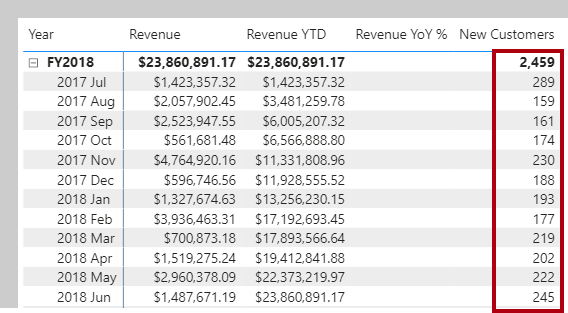
For the CustomersPrior variable, notice that the DATESBETWEEN function includes dates until the first date in filter context minus one. Because Power BI internally stores dates as numbers, you can add or subtract numbers to shift a date.
Snapshot calculations
Occasionally, fact data is stored as snapshots in time. Common examples include inventory stock levels or account balances. A snapshot of values is loaded into the table on a periodic basis.
When summarizing snapshot values (like inventory stock levels), you can summarize values across any dimension except date. Adding stock level counts across product categories produces a meaningful summary, but adding stock level counts across dates doesn't. Adding yesterday's stock level to today's stock level isn't a useful operation to perform (unless you want to average that result).
When you're summarizing snapshot tables, measure formulas can rely on DAX time intelligence functions to enforce a single date filter.
In the following example, you explore a scenario for the Adventure Works company. Switch to model view and select the Inventory model diagram.
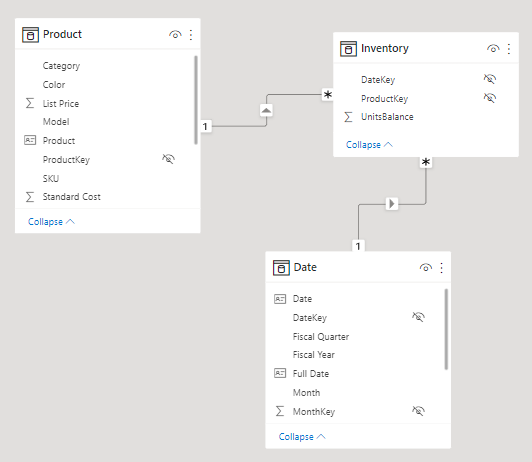
Notice that the diagram shows three tables: Product, Date, and Inventory. The Inventory table stores snapshots of unit balances for each date and product. Importantly, the table contains no missing dates and no duplicate entries for any product on the same date. Also, the last snapshot record is stored for the date of June 15, 2020.
Now, switch to report view and select Page 2 of the report. Add the UnitsBalance column of the Inventory table to the matrix visual. Its default summarization is set to sum values.
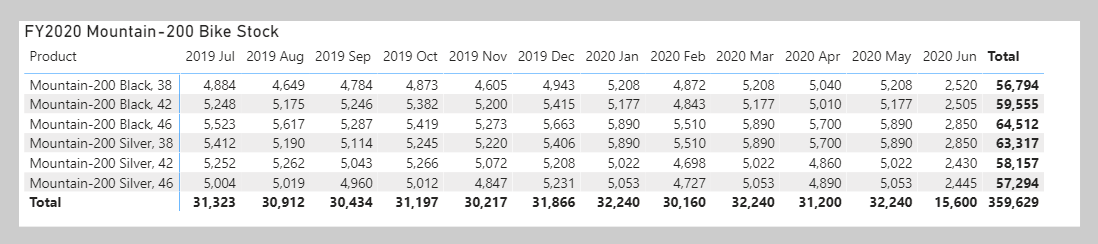
This visual configuration is an example of how not to summarize a snapshot value. Adding daily snapshot balances together doesn't produce a meaningful result. Therefore, remove the UnitsBalance field from the matrix visual.
Now, you add a measure to the Inventory table that sums the UnitsBalance value for a single date. The date is the last date of each time period. It's achieved by using the LASTDATE function. Format the measure as a whole number with the thousands separator.
DAXCopy
Stock on Hand =
CALCULATE(
    SUM(Inventory[UnitsBalance]),
    LASTDATE('Date'[Date])
)
Note
Notice that the measure formula uses the SUM function. An aggregate function must be used (measures don't allow direct references to columns), but given that only one row exists for each product for each date, the SUM function only operates over a single row.
Add the Stock on Hand measure to the matrix visual. The value for each product is now based on the last recorded units balance for each month.
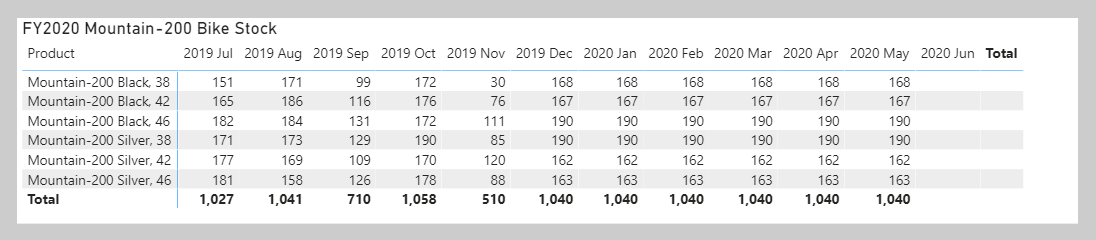
The measure returns BLANKs for June 2020 because no record exists for the last date in June. According to the data, it hasn't happened yet.
Filtering by the last date in filter context has inherent problems: A recorded date might not exist because it hasn't yet happened, or perhaps because stock balances aren't recorded on weekends.
Your next step is to adjust the measure formula to determine the last date that has a non-BLANK result and then filter by that date. You can achieve this task by using the LASTNONBLANK function.
Use the following measure definition to modify the Stock on Hand measure.
DAXCopy
Stock on Hand =
CALCULATE(
    SUM(Inventory[UnitsBalance]),
    LASTNONBLANK(
        'Date'[Date],
        CALCULATE(SUM(Inventory[UnitsBalance]))
    )
)
In the matrix visual, notice the values for June 2020 and the total (representing the entire year).
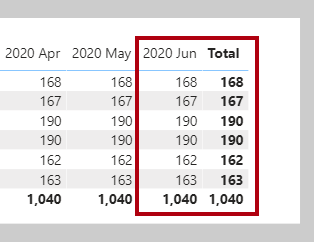
The LASTNONBLANK function is an iterator function. It returns the last date that produces a non-BLANK result. It achieves this result by iterating through all dates in filter context in descending chronological order. (Conversely, the FIRSTNONBLANK iterates in ascending chronological order.) For each date, it evaluates the passed in expression. When it encounters a non-BLANK result, the function returns the date. That date is then used to filter the CALCULATE function.
Note
The LASTNONBLANK function evaluates its expression in row context. The CALCULATE function must be used to transition the row context to filter context to correctly evaluate the expression.
You should now hide the UnitsBalance column in the Inventory table. It prevents report authors from inappropriately summarizing snapshot unit balances.
[4] Exercise - Use time intelligence functions
This unit includes a lab to complete.
Use the free resources provided in the lab to complete the exercises in this unit. You will not be charged for the lab environment; however, you may need to bring your own subscription depending on the lab.
Microsoft provides this lab experience and related content for educational purposes. All presented information is owned by Microsoft and intended solely for learning about the covered products and services in this Microsoft Learn module.
In this exercise, you learn how to:
- Create DAX measures using time intelligence functions.
This lab takes approximately 15 minutes to complete.
Note
A virtual machine containing the client tools you need is provided, along with the exercise instructions. Use the "Launch lab" button to launch the virtual machine.
A limited number of concurrent sessions are available. If the hosted environment is unavailable, please try again later.
Alternatively, you can open the instructions in a separate window.
Access your environment
Before you start this lab (unless you are continuing from a previous lab), select Launch lab above.
You are automatically logged in to your lab environment as data-ai\student.
You can now begin your work on this lab.
Tip
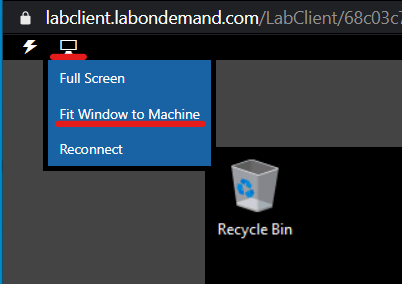
To dock the lab environment so that it fills the window, select the PC icon at the top and then select Fit Window to Machine.
[5] Check your knowledge
Answer the following questions to see what you've learned.
[1] In the context of semantic model calculations, which statement best describes time intelligence?
a. Snapshot balance reporting
b. Filter context modifications involving a date table
c. Complex calculations involving time
d. Calculations involving hours, minutes, or seconds
[2] You're developing a semantic model in Power BI Desktop. You've just added a date table by using the CALENDARAUTO function. You've extended it with calculated columns, and you've related it to other model tables. What else should you do to ensure that DAX time intelligence calculations work correctly?
a. Add time intelligence measures to the date table.
b. Mark as a Date table.
c. Add a fiscal hierarchy.
d. Add a date column.
[3] You have a table that stores account balance snapshots for each date, excluding weekends. You need to ensure that your measure formula only filters by a single date. Also, if no record is on the last date of a time period, it should use the latest account balance. Which DAX time intelligence function should you use?
a. FIRST
b. FIRSTNONBLANK
c. LAST
d. LASTNONBLANK
[6] Summary
In this module, you learned how time intelligence calculations work by changing the filter context for date filters. You learned about several DAX time intelligence functions. These functions help you create calculations like year-to-date (YTD) and year-over-year (YoY).
You also learned about life-to-date (LTD) calculations. LTD calculations help you count new occurrences in your fact data. Additionally, you saw how to filter snapshot data to ensure that only a single snapshot value is returned.
Source:
https://learn.microsoft.com/en-us/training/modules/dax-power-bi-time-intelligence/