Write DAX formulas for semantic models

Mohamad's interest is in Programming (Mobile, Web, Database and Machine Learning). He is studying at the Center For Artificial Intelligence Technology (CAIT), Universiti Kebangsaan Malaysia (UKM).
Data Analysis Expressions (DAX) is a formula language for Power BI that enables you to create calculations, add logic, and enhance data analysis within your reports and semantic models.
Learning objectives
In this module, you learn how to:
Describe the different DAX calculation types.
Write DAX formulas.
Describe DAX data types.
Work with DAX functions.
Use DAX operators.
Use DAX variables.
[1] Introduction
DAX (Data Analysis Expressions) lets you create powerful calculations in Power BI, helping you analyze and visualize your data in new ways.
For example, imagine you need to quickly find year-over-year sales growth or count unique customers in your reports. DAX makes these tasks simple and efficient, even when your data is complex or contains blanks.
In this module, you learn how to:
Write DAX formulas for calculated tables, columns, and measures.
Work with different data types and handle blank values.
Use various DAX functions, including those similar to Excel.
Apply operators and understand how they work together.
Improve your formulas with variables for better performance and readability.
After finishing this module, you’ll know how to build and optimize DAX calculations in Power BI, making your reports more dynamic and insightful.
[2] Understand DAX calculation types
By using Data Analysis Expressions (DAX), you can add three types of calculations to your semantic model:
Calculated tables
Calculated columns
Measures
Note
DAX can also be used to define row-level security (RLS) rules, which are expressions that enforce filters over model tables. However, rules aren't considered to be model calculations so they're out of scope for this module. For more information, see Row-level security (RLS) with Power BI.
Calculated tables
You can write a DAX formula to add a calculated table to your model. The formula can duplicate or transform existing model data, or create a series of data, to produce a new table. Calculated table data is always imported into your model, so it increases the model storage size and extends data refresh time.
Note
A calculated table can't connect to external data; you need to use Power Query to accomplish that task.
Calculated tables can be useful in various scenarios:
Date tables
Role-playing dimensions
What-if analysis
Date tables
Date tables are required to apply special time filters known as time intelligence. DAX time intelligence functions only work correctly when a date table is set up. When your source data doesn't include a date table, you can create one as a calculated table by using the CALENDAR or CALENDARAUTO` functions.
Role-playing dimensions
When two model tables have multiple relationships, it could be because your model has a role-playing dimension. For example, if you have a table named Sales that includes two date columns, OrderDateKey and ShipDateKey, both columns are related to the Date column in the Date table. In this case, the Date table is described as a role-playing dimension because it could play the role of order date or ship date.
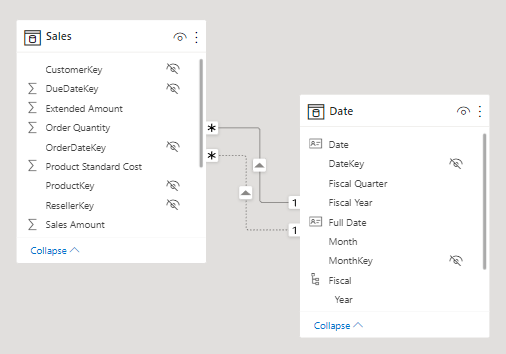
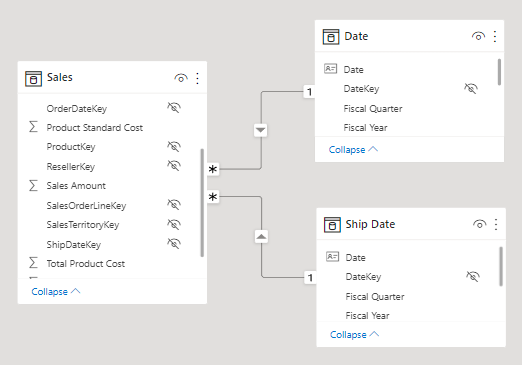
Semantic models only allow one active relationship between tables, which in the model diagram is indicated as a solid line. The active relationship is used by default to propagate filters, which in this case would be from the Date table to the OrderDateKey column in the Sales table. Any remaining relationships between the two tables are inactive. In a model diagram, the relationships are represented as dashed lines. Inactive relationships are only used when they're expressly requested in a calculated formula by using the USERELATIONSHIP function.
Perhaps a better model design could have two date tables, each with an active relationship to the Sales table. Thus, report users can filter by order date or ship date, or both at the same time. A calculated table can duplicate the Date table data to create the Ship Date table.
What-if analysis
Power BI Desktop includes a feature called parameters. When you create a numeric range parameter, a calculated table is automatically added to your model.
Numeric range parameters allow report users to select or filter by values that are stored in the calculated table. Measure formulas can use selected values in a meaningful way. For example, a numeric range parameter could allow the report user to select a hypothetical currency exchange rate, and a measure could divide revenue values (in a local currency) by the selected rate.
Notably, parameter calculated tables aren't related to other model tables because they're not used to propagate filters. For this reason, they're called disconnected tables.
Calculated columns
You can write a DAX formula to add a calculated column to any table in your model. The formula is evaluated for each table row and it returns a single value. When added to an Import storage mode table, the formula is evaluated when the semantic model is refreshed, and it increases the storage size of your model. When added to a DirectQuery storage mode table, the formula is evaluated by the underlying source database when the table is queried.
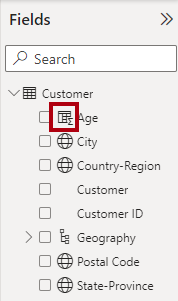
In the Data pane, calculated columns are enhanced with a special icon. The following example shows a single calculated column in the Customer table called Age.
Measures
You can write a DAX formula to add a measure to any table in your model. The formula achieves summarization over model data. Similar to a calculated column, the formula must return a single value. However, unlike calculated columns, which are evaluated at data refresh time, measures are evaluated at query time. Their results are never stored in the model.
In the Data pane, measures are shown with the calculator icon. The following example shows three measures in the Sales table: Cost, Profit, and Revenue.
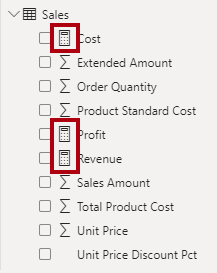
Occasionally, measures can be described as explicit measures. To be clear, explicit measures are model calculations that are written in DAX and are commonly referred to as simply measures. Yet, the concept of implicit measures exists, too. Implicit measures are columns that can be summarized by visuals in simplistic ways, like count, sum, minimum, maximum, and so on. You can identify implicit measures in the Data pane because they're shown with the sigma symbol (∑).
Note
Any column can be summarized when added to a visual. Therefore, whether they're shown with the sigma symbol or not, when they're added to a visual, they can be set up as implicit measures.
Additionally, no such concept as a calculated measure exists in tabular modeling. The word calculated is used to describe calculated tables and calculated columns, which distinguish them from tables and columns that originate from Power Query. Power Query doesn't have the concept of an explicit measure.
[3] Write DAX formulas
Each model calculation type, calculated table, calculated column, or measure is defined by its name, followed by the equals symbol (=), which is then followed by a DAX formula. Use the following template to create a model calculation:
DAXCopy
<Calculation name> = <DAX formula>
For example, the definition of the Ship Date calculated table that duplicates the Date table data is:
DAXCopy
Ship Date = 'Date'
A DAX formula consists of expressions that return a result. The result is either a table object or a scalar value. Calculated table formulas must return a table object; calculated column and measure formulas must return a scalar value (single value).
Formulas are assembled by using:
DAX functions
DAX operators
References to model objects
Constant values, like the number 24 or the literal text "FY" (abbreviation for fiscal year)
DAX variables
Whitespace
Tip
When entering DAX formulas in Power BI Desktop, you have the benefit of IntelliSense. IntelliSense is a code-completion aid that lists functions and model resources. When you select a DAX function, it also provides you with a definition and description. We recommend that you use IntelliSense to help you quickly build accurate formulas.
DAX functions
Similar to Microsoft Excel, DAX is a functional language meaning that formulas rely on functions to accomplish specific goals. Typically, DAX functions have arguments that allow passing in variables. Formulas can use many function calls and will often nest functions within other functions.
In a formula, function names must be followed by parentheses. Within the parentheses, variables are passed in.
Note
Some functions don't take arguments, or arguments might be optional.
Working with DAX functions is described later in this module.
DAX operators
Formulas also rely on operators, which can perform arithmetic calculations, compare values, work with strings, or test conditions.
DAX operators are described in more detail later in this module.
References to model objects
Formulas can only refer to three types of model objects: tables, columns, or measures. A formula can't refer to a hierarchy or a hierarchy level. (Recall that a hierarchy level is based on a column, so your formula can refer to a hierarchy level's column.)
Table references
When you reference a table in a formula, officially, the table name is enclosed within single quotation marks. In the following calculated table definition, notice that the Date table is enclosed within single quotation marks.
DAXCopy
Ship Date = 'Date'
However, single quotation marks can be omitted when both of the following conditions are true:
The table name doesn't include embedded spaces.
The table name isn't a reserved word that's used by DAX. All DAX function names and operators are reserved words. Date is a DAX function name, which explains why, when you're referencing a table named
Date, that you must enclose it within single quotation marks.
In the following calculated table definition, it's possible to omit the single quotation marks when referencing the Airport table:
DAXCopy
Arrival Airport = Airport
Column references
When you reference a column in a formula, the column name must be enclosed within square brackets. Optionally, it can be preceded by its table name. For example, the following measure definition refers to the Sales Amount column.
DAXCopy
Revenue = SUM([Sales Amount])
Because column names are unique within a table but not necessarily unique within the model, you can disambiguate the column reference by preceding it with its table name. This disambiguated column is known as a fully qualified column. Some DAX functions require passing in fully qualified columns.
Tip
To improve the readability of your formulas, we recommend that you always precede a column reference with its table name.
The previous example measure definition can be rewritten as:
DAXCopy
Revenue = SUM(Sales[Sales Amount])
Measure references
When you reference a measure in a formula, like column name references, the measure name must be enclosed within square brackets. For example, the following measure definition refers to the Revenue and Cost measures.
DAXCopy
Profit = [Revenue] - [Cost]
If you're a DAX beginner, the fact that column and measure references are always enclosed within square brackets can cause confusion when you're trying to understand a formula. However, as you become proficient with DAX fundamentals, you're able to determine which type of object it is because, in DAX formulas, columns, and measures are used in different ways.
Tip
It's possible to precede a measure reference with its table name. However, measures are a model-level object. While they're assigned to a home table, it's only a cosmetic relationship to logically organize measures in the Data pane.
Therefore, while we recommend that you always precede a column reference with its table name, the inverse is true for measures: We recommend that you never precede a measure reference with its table name.
For more information, see Column and measure references.
DAX variables
Formulas can declare DAX variables to store results.
How and when to use DAX variables is described later in this module.
Whitespace
Whitespace refers to characters that you can use to format your formulas in a way that's quick and simple to understand. Whitespace characters include:
Spaces
Tabs
Carriage returns
Whitespace is optional and it doesn't modify your formula logic or negatively affect performance. We strongly recommend that you adopt a format style and apply it consistently, and consider the following recommendations:
Use spaces between operators.
Use tabs to indent nested function calls.
Use carriage returns to separate function arguments, especially when it's too long to fit on a single line. Formatting in this way makes it simpler to troubleshoot, especially when the formula is missing a parenthesis.
Err on the side of too much whitespace than too little.
Tip
In the formula bar, to enter a carriage return, press Shift+Enter. Pressing Enter alone commits your formula.
Notice how the following measure definition is written in a single line and that includes five DAX function calls:
DAXCopy
Revenue YoY % = DIVIDE([Revenue] - CALCULATE([Revenue], SAMEPERIODLASTYEAR('Date'[Date])), CALCULATE([Revenue], SAMEPERIODLASTYEAR('Date'[Date])))
The following example is the same measure definition but now formatted, which helps make it easier to read and understand:
DAXCopy
Revenue YoY % =
DIVIDE(
    [Revenue]
        - CALCULATE(
            [Revenue],
            SAMEPERIODLASTYEAR('Date'[Date])
    ),
    CALCULATE(
        [Revenue],
        SAMEPERIODLASTYEAR('Date'[Date])
    )
)
Try formatting the measure on your own. Open the Adventure Works DW 2020 M02.pbix Power BI Desktop file and then, in the Data pane, expand the Sales table and then select the Revenue YoY % measure. In the formula bar, use tab and carriage return characters to produce the same result as the previous example. When you add a carriage return, remember to press Shift+Enter.
This measure definition can be further improved for readability and performance, which is explained later in this module.
Tip
An excellent formatting tool from another source that can help you format your calculations is DAX Formatter. This tool allows you to paste in your calculation and format it. You can then copy the formatted calculation to the clipboard and paste it back into Power BI Desktop.
[4] DAX data types
Each column in a semantic model has a data type, which controls what kind of values are stored. You can set the data type in Power Query when connecting to data or creating columns. If you add a calculated column, DAX determines its data type based on the formula you write. Measures also have data types, but they're determined by the result of their calculation and can change depending on filter context.
Model data types and DAX data types are related but not always the same. The table below shows how they correspond and the range of values each supports.
Expand table
| Model data type | DAX data type | Description |
| Whole number | 64-bit integer | -263 through 263-1 |
| Decimal number | 64-bit real | Negative: -1.79 x 10308 through -2.23 x 10-308 - zero (0) - positive: 2.23 x 10-308 through 1.79 x 10308 - Limited to 17 decimal digits |
| Boolean | Boolean | TRUE or FALSE |
| Text | String | Unicode character string |
| Date | Date/time | Valid dates are all dates after January 1, 1900 |
| Currency | Currency | -9.22 x 10¹⁴ through 9.22 x 10¹⁴ - limited to four decimal digits of fixed precision |
| N/A | BLANK | In some cases, it's the equivalent of a database (SQL) NULL |
BLANK data type
The BLANK data type deserves a special mention. DAX uses BLANK for both database NULL and for blank cells in Excel. BLANK doesn't mean zero. Perhaps it might be simpler to think of it as the absence of a value.
Two DAX functions are related to the BLANK data type: the BLANK function returns BLANK, while the ISBLANK function tests whether an expression evaluates to BLANK.
[5] Work with DAX functions
The DAX function library consists of hundreds of functions, each designed to accomplish a specific goal.
Because DAX originated with the Power Pivot add-in for Microsoft Excel 2010, over 80 functions are available that can also be found in Excel. It was a deliberate design strategy by Microsoft to ensure that Excel users can quickly become productive with DAX.
However, many functions exist in Power BI, but not Excel because they're specific to data modeling:
Relationship navigation functions
Filter context modification functions
Iterator functions
Time intelligence functions
Path functions
Tip
To search for documentation that is related to a DAX function, in a web search, enter the keyword DAX followed by the function name.
For more information, see the DAX function reference.
Functions that originate from Excel
The following sections consider several useful functions that you might already be familiar with because they exist in Excel.
The IF function tests whether a condition that's provided as the first argument is met. It returns one value if the condition is TRUE and returns the other value if the condition is FALSE. The function's syntax is:
DAXCopy
IF(<logical_test>, <value_if_true>[, <value_if_false>])
Tip
A function argument is optional when documentation shows it enclosed within square brackets.
If logical_test evaluates to FALSE and value_if_false isn't provided, the function returns BLANK.
Many Excel summarization functions are available, including SUM, COUNT, AVERAGE, MIN, MAX, and many others. The only difference is that in DAX, you pass in a column reference, whereas in Excel, you pass in a range of cells.
Many Excel mathematic, text, date and time, information, and logical functions are available as well. For example, a small sample of Excel functions that are available in DAX include ABS, ROUND, SQRT, LEN, LEFT, RIGHT, UPPER, DATE, YEAR, MONTH, NOW, ISNUMBER, TRUE, FALSE, AND, OR, NOT, and IFERROR.
Functions that don't originate from Excel
Two useful DAX functions that aren't specific to modeling and that don't originate from Excel are DISTINCTCOUNT and DIVIDE.
DISTINCTCOUNT function
You can use the DISTINCTCOUNT DAX function to count the number of distinct values in a column. This function is especially powerful in an analytics solution. Consider that the count of customers is different from the count of distinct customers. The latter doesn't count repeat customers, so the difference is "How many customers" compared with "How many different customers."
DIVIDE function
You can use the DIVIDE DAX function to achieve division. You must pass in numerator and denominator expressions. Optionally, you can pass in a value that represents an alternate result. The DIVIDE function's syntax is:
DAXCopy
DIVIDE(<numerator>, <denominator>[, <alternate_result>])
The DIVIDE function automatically handles division by zero cases. If an alternate result isn't passed in, and the denominator is zero or BLANK, the function returns BLANK. When an alternate result is passed in, it's returned instead of BLANK.
This function is convenient because it saves your expression from having to first test the denominator value. The function is also better optimized for testing the denominator value than the IF function. The performance gain is significant because checking for division by zero is expensive. What's more, using the DIVIDE function results in a more concise and elegant expression.
Tip
We recommend that you use the DIVIDE function whenever the denominator is an expression that could return zero or BLANK. In the case that the denominator is a constant value, we recommend that you use the divide operator (/), which is introduced later in this module. In this case, the division is guaranteed to succeed, and your expression performs better because it avoids unnecessary testing.
[6] Use DAX operators
Your DAX formulas can use operators to create expressions that perform arithmetic calculations, compare values, work with strings, or test conditions.
Tip
Many DAX operators and precedence order are the same as those found in Excel.
Arithmetic operators
The following table lists the arithmetic operators.
Expand table
| Operator | Description |
| + | Addition |
| - | Subtraction |
| * | Multiplication |
| / | Division |
| ^ | Exponentiation |
Remember, when you're dividing two expressions, and when the denominator could return zero or BLANK, it's more efficient and safer to use the DIVIDE function.
Comparison operators
The following table lists the comparison operators, which are used to compare two values. The result is either TRUE or FALSE.
Expand table
| Operator | Description |
| \= | Equal to |
| \== | Strict equal to |
| \> | Greater than |
| < | Less than |
| \>= | Greater than or equal to |
| <= | Less than or equal to |
| <> | Not equal to |
All comparison operators, except strict equal to (\==), treat BLANK as equal to the number zero, an empty string (""), the date December 30, 1899, or FALSE. It means that the expression [Revenue] = 0 is TRUE when the value of [Revenue] is either zero or BLANK. In contrast, [Revenue] == 0 is TRUE only when the value of [Revenue] is zero.
Text concatenation operator
Use the ampersand (&) character to connect, or concatenate, two text values to produce one continuous text value. For example, consider the following calculated column definition:
DAXCopy
Model Color = 'Product'[Model] & "-" & 'Product'[Color]
Logical operators
Use logical operators to combine expressions that produce a single result. The following table lists all logical operators.
Expand table
| Operator | Description | ||
| && | Creates an AND condition between two expressions where each has a Boolean result. If both expressions return TRUE, the combination of the expressions also returns TRUE; otherwise the combination returns FALSE. | ||
| (double pipe) | Creates an OR condition between two logical expressions. If either expression returns TRUE, the result is TRUE; only when both expressions are FALSE is the result FALSE. | ||
| IN | Creates a logical OR condition between each row that is being compared to a table. Note: The table constructor syntax uses braces. | ||
| NOT | Inverts the state of a Boolean expression (FALSE to TRUE, and vice versa). |
An example that uses the IN logical operator is the ANZ Revenue measure definition, which uses the CALCULATE function to enforce a specific filter of two countries/regions: Australia and New Zealand.
Note
You're introduced to the powerful CALCULATE function when you learn how to modify the filter context.
DAXCopy
ANZ Revenue =
CALCULATE(
    [Revenue],
    Customer[Country-Region] IN {
        "Australia",
        "New Zealand"
    }
)
Operator precedence
When your DAX formula includes multiple operators, DAX uses rules to determine the evaluation order, which is known as an operator precedence. Operations are ordered according to the following table.
Expand table
| Operator | Description |
| ^ | Exponentiation |
| - | Sign (as in -1) |
| * and / | Multiplication and division |
| NOT | NOT |
| + and - | Addition and subtraction |
| & | Concatenation of two strings of text |
| \=,==,<,>,<=,>=,<> | Comparison |
When the operators have equal precedence value, they're ordered from left to right.
In general, operator precedence is the same as what's found in Excel. If you need to override the evaluation order, then group operations within parentheses.
For example, consider the following calculated column definition:
DAXCopy
Extended Amount = Sales[Order Quantity] * Sales[Unit Price] * 1 - [Unit Price Discount Pct]
This sample calculated column definition produces an incorrect result because multiplication happens before the subtraction. The following correct calculated column definition uses parentheses to ensure that the subtractions happen before the multiplications.
DAXCopy
Extended Amount = Sales[Order Quantity] * Sales[Unit Price] * (1 - [Unit Price Discount Pct])
Tip
Remembering operator precedence rules can be challenging, especially for DAX beginners. We recommend that you test your formulas thoroughly. When the formulas don't produce the correct result due to an incorrect evaluation order, you can experiment by adding parentheses to adjust the evaluation order. You can also add parentheses to improve the readability of your formulas.
For more information about DAX operators and precedence order, see DAX operators.
Implicit conversion
When writing a DAX formula that uses operators to combine different data types, you don't need to explicitly convert types. Usually, DAX automatically identifies the data types of referenced model objects and performs implicit conversions where necessary to complete the specified operation.
However, some limitations might exist on the values that can be successfully converted. If a value or a column has a data type that's incompatible with the current operation, DAX returns an error. For example, the attempt to multiply a date value creates an error because it isn't logical.
BLANK is handled differently, depending on the operator that is used. It's handled similar to how Excel treats BLANK, but differently to how databases (SQL) treat NULL. BLANK is treated as zero when acted on by arithmetic operators and as an empty string when concatenated to a string.
Tip
Remembering how BLANK is handled can be challenging, especially for DAX beginners. We recommend that you test your formulas thoroughly. When BLANKs create unexpected results, consider using the IF and ISBLANK functions to test for BLANK, and then respond in an appropriate way.
[7] Use DAX variables
You can declare DAX variables in your formula expressions. When you declare at least one variable, a RETURN clause is used to define the expression, which then refers to the variables.
We recommend that you use variables because they offer several benefits:
They improve the readability and maintenance of your formulas.
They improve performance because variables are evaluated once and only when or if they're needed.
They allow (at design time) straightforward testing of a complex formula by returning the variable of interest.
The following example shows a formula that declares a variable. The Revenue YoY % measure definition is rewritten to declare a variable that's assigned the value of the prior year's revenue.
DAXCopy
Revenue YoY % =
VAR RevenuePriorYear =
    CALCULATE(
        [Revenue],
        SAMEPERIODLASTYEAR('Date'[Date])
    )
RETURN
    DIVIDE(
        [Revenue] - RevenuePriorYear,
        RevenuePriorYear
    )
Notice that the RETURN clause refers to the variable twice. This improved measure definition formula runs in at least half the time because it doesn't need to evaluate the prior year's revenue twice.
In the Adventure Works DW 2020 M02.pbix Power BI Desktop file, refactor the Revenue YoY % measure to produce the same result as the previous example.
For more information on using DAX variables, see Use variables to improve your formulas.
[8] Check your knowledge
[1] You're using Power BI Desktop to develop a model. It has a table named Sales, which includes a column named CustomerKey. In reports, you need a calculation to show the number of different customers who have placed orders. What type of DAX calculation do you add to the model?
a. Calculated table
b. Calculated column
c. Measure
[2] You're using Power BI Desktop to develop a model. It has a table named Customer, which includes a column named DateOfBirth. In reports, you need to group customers by current age. What type of DAX calculation should you add to the Customer table?
a.cCalculated table
b. Calculated column
c. Measure
[3] You're using Power BI Desktop to develop a model. It has a table named Geography, which has two relationships to the Sales table. One relationship filters by customer region and the other filters by sales region. You need to create a role-playing dimension so that both filters are possible. What type of DAX calculation do you add to the model?
a. Calculated table
b. Calculated column
c. Measure
[4] You write a DAX formula that adds BLANK to the number 20. What is the result?
a. The result is zero (0).
b. The result is 20.
c. The result is BLANK.
[9] Summary
In this module, you learned how to use DAX to add calculations to your model. You explored three types of calculations:
Calculated tables
Calculated columns
Measures
You also learned the basics of DAX, including:
Writing formulas
Using different data types
Applying functions, operators, and variables
Referencing model objects and constants
Source:
https://learn.microsoft.com/en-us/training/modules/dax-power-bi-write-formulas/